

An IT roadmap for a 20-person business starts with a security baseline, then endpoint security, MFA on internet-facing accounts, locked-down admin accounts with a break-glass backup, and staff training. Hardware, licensing, backups, end-of-support dates, and the budget come after that.
Most roadmaps start with a purchase. A new server. A laptop refresh. A move to the cloud that somebody read about over the summer. I understand the instinct, because buying something feels like progress, but the order is backwards, and a business that buys first tends to pay twice for the same gap.
Start somewhere else. Sequence matters more than the shopping list. What follows is the order I recommend when we sit down with a business for vCIO strategy and roadmapping, sized for a company of about 20 people. That’s big enough to have a real Microsoft 365 tenant, a couple dozen devices, and data worth stealing. It’s also small enough that nobody on staff has IT in their job title.
The first half is security, and those five steps run in a fixed order. The second half is planning. Both belong in the same document, and the whole thing gets reviewed once a year. Annual is closer to how small businesses actually operate than any heavier meeting schedule, and a plan that gets read once a year beats one that sits ignored on a tighter calendar.
The Five Security Steps, in the Order That Works
Every item below matters. Order is the point. Each step assumes the one before it is already done.
- 1Security baselineFind out what is in place before anything gets bought.
- 2Endpoint securityUpgrade it if the baseline shows gaps on laptops, desktops or servers.
- 3Internet-facing accountsComplex passwords and MFA on email, banking, payroll and every cloud login.
- 4Admin and break-glass accountsFewer administrators, and a locked-away emergency Global Administrator.
- 5Security awareness trainingTeach staff what phishing looks like, then test them with simulations.
1. Get a Security Baseline Before You Buy Anything
“The very first thing that you have to do is get a security baseline, to understand what you have in place.” That’s where I tell owners to start.
A security baseline is a written snapshot of what protects the business today. It lists every device and who uses it, every account and what it can reach, which machines run endpoint protection, where MFA is switched on, who holds administrator rights, and what actually gets backed up. It records what exists. Grading comes later.
Why first? The other four steps are all fixes, and you can’t fix what you haven’t counted. A 20-person office almost never has exactly 20 devices. There’s a shared machine at reception, a spare laptop in a drawer, a scanner that emails documents, and usually an old account belonging to someone who left two years ago and can still sign in to email. The baseline finds those things. Guessing doesn’t.
One clarification, since the word gets used loosely. A baseline isn’t an audit and it isn’t a certification. It’s the starting point a plan gets built on.

2. Fix Endpoint Security If It Isn’t Enough
Endpoint security is the protection running on each laptop, desktop and server, and the baseline tells you whether yours is sufficient. If it is, move on. If not, this is where the next dollar goes.
Insufficient rarely means nothing at all. It’s usually a mix. One computer runs the consumer antivirus it shipped with, three others run a business product whose subscription quietly lapsed, and one has nothing on it at all. The current standard for business devices is endpoint detection and response, which watches what software actually does on the machine instead of only matching known malware, and we’ve laid out the difference in our comparison of EDR versus antivirus.
Read your plan first. Check the licensing before buying a separate tool. Microsoft 365 Business Premium includes Microsoft Defender for Business, which Microsoft lists with endpoint detection and response, so some offices already own the capability and have never switched it on. Servers are the exception worth knowing about. Microsoft says protecting Windows and Linux servers under that product requires extra licenses.
3. Protect Every Account That Faces the Internet
An internet-facing account is anything a stranger could try to sign in to from outside your building. Microsoft 365 email. The bank portal. Payroll. Your cloud line-of-business software, the VPN, the domain registrar, the accounting package your bookkeeper logs in to from home. Write each one down.
Two controls go on every one of them. A complex, unique password, and multifactor authentication.
Unique passwords at this scale mean a password manager, because nobody remembers forty of them and everyone eventually reuses one. BitWarden is our recommended system. MFA is the second half, and it’s what makes a stolen password far less useful on its own, since whoever has it still needs the second factor.
Make the list before you start switching things on. It’s always longer than people expect, so begin with email and anything that moves money, then work outward.
4. Lock Down Admin Accounts and Keep a Break-Glass Account
Administrator accounts can undo everything else on this list, so they get their own step. In Microsoft 365 the most powerful role is Global Administrator, and Microsoft’s best practices for Microsoft Entra roles recommend giving it to fewer than five people and holding admin roles on cloud-only accounts instead of accounts synced from an on-premises server. At 20 people, two named administrators is usually plenty. Two, not five. Ideally, neither is the account someone reads email with all day.
Then comes the piece most small businesses don’t have at all.
A break-glass account is a spare Global Administrator account kept locked away for the day nobody else can get in. “Some companies don’t have that and lose access to their global admin, and then they can’t do anything.” No password resets, no new users, no license changes, no way to shut off an account that should be shut off. It’s a miserable spot. Email keeps flowing and the tenant keeps running, but you can’t manage it, and getting control back can mean a slow recovery process with Microsoft at the worst possible moment.
Microsoft calls these emergency access accounts, and its guidance on managing them is specific. For a tenant this size, the essentials come down to a handful of rules.
- Create at least two. Both should be cloud-only accounts on the tenant’s onmicrosoft.com domain, with the Global Administrator role assigned permanently.
- Don’t tie them to any one employee or to anyone’s personal phone.
- Protect them with a phishing-resistant method that differs from your everyday admin sign-in. Microsoft’s recommended option is a passkey (FIDO2), such as a hardware security key.
- Leave them out of any Conditional Access policy that blocks or restricts sign-in, or they may fail during the exact emergency they exist for. The exclusion doesn’t exempt them from MFA, because Microsoft now requires MFA on its admin portals for every account, which is one more reason the passkey matters.
- Keep the credentials in secure, fireproof safes, in separate locations.
- Alert on every sign-in, and confirm the accounts still work at least every 90 days, which is Microsoft’s minimum.
Among the situations Microsoft lists for needing one, a single line fits small offices uncomfortably well. The person with the most recent Global Administrator access leaves the organization. At 20 people, that’s often whoever set up Microsoft 365 years ago and kept the password in their head.

5. Train Your People, Then Test Them
The fifth step in my order is security awareness training paired with phishing simulations. The aim is plain enough. Teach your users what a convincing fake looks like so they stop falling for it, then send realistic practice emails and see who clicks and who reports.
Why last? It comes last for a reason, and not because it matters least. Training works best on top of controls that already exist. If someone does click, MFA and endpoint protection limit what that click can reach, whereas training on its own leaves one bad afternoon free to cost you a great deal.
Keep the sessions short. Repeat them. Short sessions repeated through the year tend to stick better than one long one, and the occasional simulation gives you something better than hope, which is a record of who needs another conversation.

What Else a 20-Person IT Roadmap Has to Cover
With the security order settled, the rest of the roadmap is planning. These items don’t run in a strict sequence. They have dates instead, and the table below shows where each one sits.
| Roadmap item | Why it is on the list | When it comes up |
|---|---|---|
| Security baseline | Shows what protects the business today | First, before any purchase |
| Endpoint security | EDR on every device, if the baseline finds gaps | Right after the baseline |
| Passwords and MFA | Covers every account reachable from the internet | Next, email and money first |
| Admin and break-glass accounts | One lost login can’t lock you out of the tenant | Once MFA is on; tested at least every 90 days |
| Security awareness training | Simulations show who still clicks | After the controls, then repeated |
| Hardware lifecycle | Laptops and desktops usually last three to five years | Annual review, with a refresh reserve |
| End-of-support dates | Unsupported software stops getting security fixes | Ahead of each vendor deadline |
| Microsoft 365 licensing | The plan decides which security features you own | At each renewal |
| Backups | Priced by storage, with servers as the priority | When data volume or servers change |
| Budget | Turns everything above into one yearly number | Annual review |
Hardware on a Schedule, Not in a Panic
A 20-person office typically runs 20 to 25 workstations once shared machines and spares are counted, and laptops and desktops usually last three to five years. Both figures come from our guide to what a 20-employee business should budget for IT, which spreads replacement into a yearly reserve instead of a surprise invoice. The roadmap supplies the list behind that reserve. Which machines, which year, and why. Firewalls, switches and Wi-Fi access points age out on their own timelines and belong on the same list.
End-of-Support Dates
Software doesn’t stop working on its end-of-support date. It stops getting security fixes, which is arguably worse, since nothing visibly changes. No warning light. For plenty of small offices the date that matters next is January 12, 2027, when Windows Server 2016 reaches the end of extended support. If that server is still in your closet, our walkthrough of Windows Server 2016 end of support covers the ways out and what each one costs in time. Every system the baseline turned up should have its date written next to it, along with a decision.
Microsoft 365 Licensing, Decided at Renewal
Licensing is where the security steps and the budget meet. Microsoft changed its business plan prices on July 1, 2026, according to its 2026 pricing update. Business Basic went from $6 to $7 per user per month and Business Standard from $12.50 to $14, while Business Premium stayed at $22. Existing customers keep their current price until renewal, which makes renewal the natural moment to choose the plan on purpose. Don’t just let it renew.
At list price, 20 users cost $1,680 a year on Basic, $3,360 on Standard, and $5,280 on Premium.
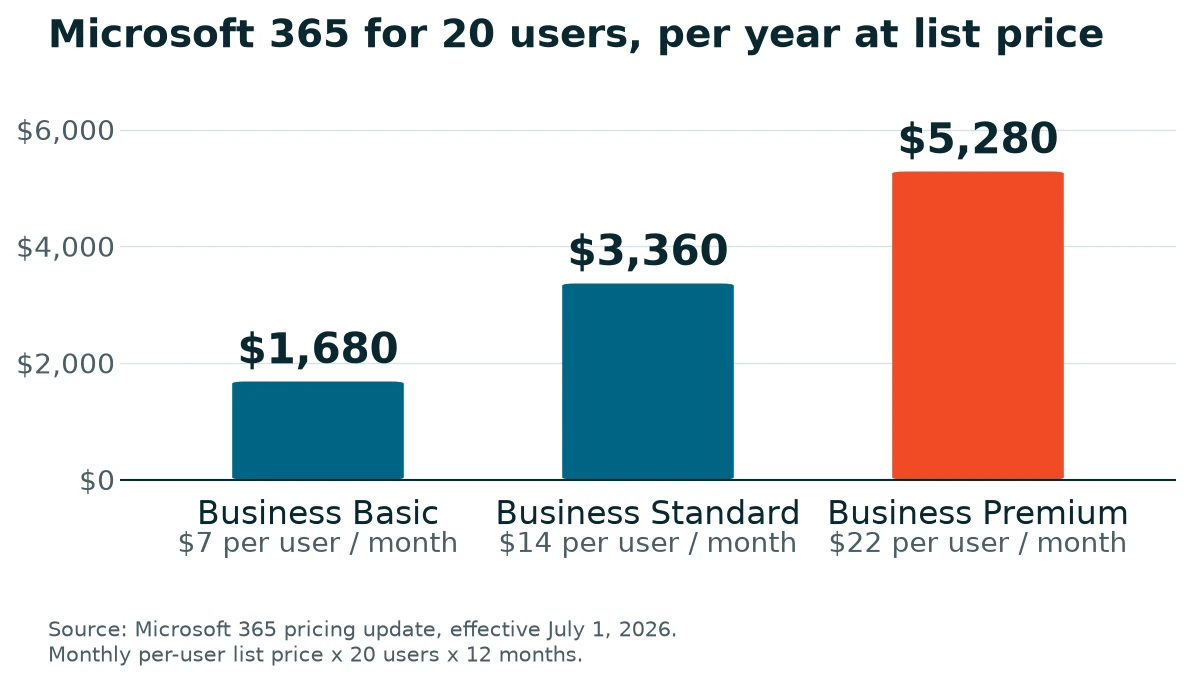
The step from Standard to Premium is $1,920 a year for 20 people. That looks like a straight cost until you remember step two. Premium is the plan that includes Defender for Business, so an office about to buy endpoint protection separately should price both routes side by side before signing anything.
Backups, Priced by Space
Backup belongs on the roadmap, budgeted the right way. It isn’t really a per-device cost. It’s a storage cost. Size drives it. What you pay depends on how much data you store, and a server holding a few hundred gigabytes needs a very different strategy, and a very different budget, than one holding 20 terabytes.
Servers come first. We generally design for business data to live on servers and in Microsoft 365, never only on someone’s laptop, so the workstations themselves usually aren’t what gets backed up.
The Budget Line
Every item above eventually becomes a number. Our budgeting guide puts a 20-employee business at roughly $24,000 to $50,000 a year all in, once support, hardware, licensing, insurance and a reserve are counted. The roadmap is what makes that number defensible to ownership, because each line carries a reason and a date.
Write it down. Revisit it every year. That’s most of the discipline right there.
Common Questions
Does a 20-person company really need a written roadmap?
Can we tackle all five security steps at once?
So what is a break-glass account, really?
Is a security baseline the same thing as a compliance audit?
How often should the roadmap get revisited?
Where does phishing training fit if our email filtering is already good?
Talk with our team about the right order for your business, from the security baseline to next year’s budget. No cost, no obligation.