
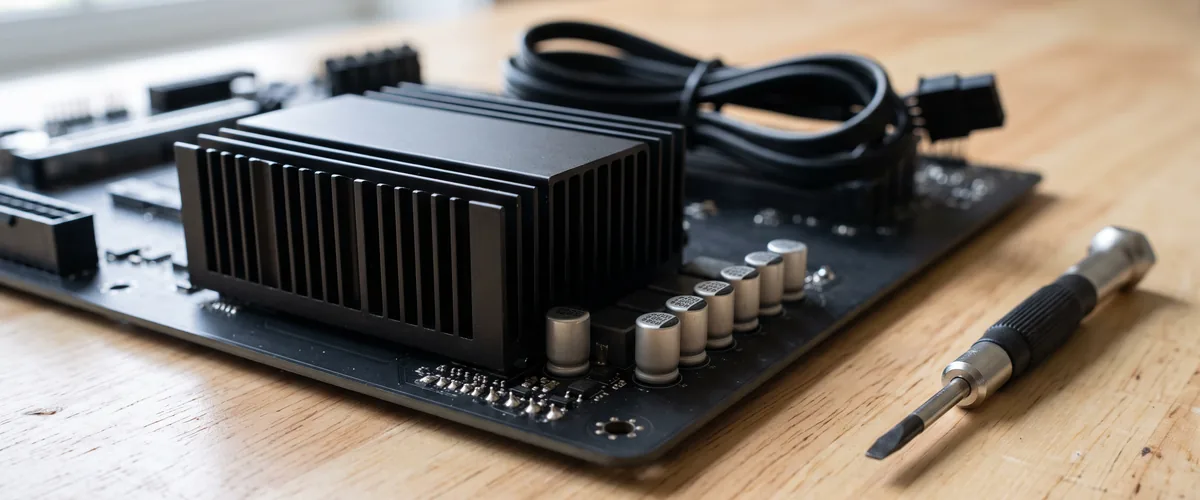
The secure boot certificate expiration began on June 24, 2026, when Microsoft’s first 2011 certificate lapsed. Older office PCs keep starting and running, but they stop receiving new early-boot protections unless the 2023 replacements are installed.
That’s the headline. It sounds worse than it is, and it isn’t nothing either. Both are true. A PC that never gets the new certificates doesn’t fail on a date. It falls behind, quietly, on a layer of protection most people never see.
For a small office the useful question is which machines are in that position. The older desktop in the back room. The server nobody has touched since it was set up. We’ve worked it out from Microsoft’s own pages, checked on November 2, 2026, and it belongs with the rest of your cybersecurity upkeep, not above it.
Secure Boot Certificate Expiration: What Actually Expired
Secure Boot is a feature of a PC’s UEFI firmware that helps make sure only trusted software runs while the PC starts up. Microsoft’s original certificates for it date from 2011, and they carry end dates. Three of them lapsed between June and October 2026, and 2023 versions replace them.
| Expiring certificate | Expired | Replaced by | What it vouches for |
|---|---|---|---|
| Microsoft Corporation KEK CA 2011 | June 24, 2026 | Microsoft Corporation KEK 2K CA 2023 | Signs updates to the trusted (DB) and blocked (DBX) lists |
| Microsoft UEFI CA 2011 | June 27, 2026 | Microsoft UEFI CA 2023 and Microsoft Option ROM UEFI CA 2023 | Third-party boot loaders, EFI applications and option ROMs |
| Microsoft Windows Production PCA 2011 | October 19, 2026 | Windows UEFI CA 2023 | Signing the Windows boot loader |
Source: Microsoft Support, “Windows Secure Boot certificate expiration and CA updates”, checked November 2, 2026.
Three dates. All of them passed. Two lists are in play. Microsoft says both the Secure Boot DB and the KEK “need to be updated with the corresponding new 2023 certificate versions.” Put plainly, the PC needs the new names on the trusted list and on the list that controls who can edit it.
What Keeps Working, and What Stops Arriving
Microsoft’s wording is plain. Startup carries on. “If your device reaches the expiration date without the new certificates, it will still start and operate normally.” Everyday apps, networking and browsing carry on, and standard Windows updates keep installing.
What stops is narrower. According to Microsoft’s own explainer, the device “will no longer be able to receive new security protections for the early boot process.” That covers updates to Windows Boot Manager, to the Secure Boot databases and revocation lists, and fixes for newly discovered vulnerabilities in the boot chain.
Think of Secure Boot as a guest list at the door of the startup process. The guests already on it stay on it. The list just stops getting Microsoft’s updates, so new trusted names don’t arrive and newly found bad ones don’t get struck off. Microsoft puts it this way: “a device in this expired state becomes progressively less protected.” Its page for blocked devices adds that newly discovered malicious or vulnerable bootloaders might not be blocked, and that features relying on Secure Boot, such as device encryption, might stop working properly if they require updated protection.
Which Older Office PCs Get Left Behind
Microsoft says most personal Windows devices will receive the new certificates automatically through its managed updates. Watch the word “most.”
Some machines need firmware from the PC maker first, and Microsoft warns that such updates “may only be available for devices that are still within their support period,” so a model the maker has dropped may never get one, and Windows Update can’t finish the job without it. Microsoft’s IT guidance sorts devices into confidence groups, one of them labeled “Not Supported – Known Limitation,” to be documented as an exception. Where the firmware doesn’t work correctly and the device is out of support, it says to “consider replacing the device to ensure Secure Boot protection across your fleet.”
The other end of the age range is better news. Microsoft says devices made in the past one to two years may already have the updated certificates, though they may still need the new boot manager applied. Less work, not none.
Picture a 12-person accounting office with eight desktops bought around 2018 and a file server from a few years earlier. The desktops might be fine. The server and the two oldest desktops are where we’d look first, because the older a model is, the more likely it has passed the maker’s support period, and that’s the point where Microsoft says firmware updates may stop being available.
Windows 10 needs a closer look. Microsoft’s pages list Windows 10 versions 1607 and 22H2 among the releases covered, and Windows Server 2016 through 2025 as well, which is why a server belongs on the list. But Microsoft’s Secure Boot FAQ is blunt: “Only supported Windows OS versions will get the certificates.” That’s the catch. Windows 10 support ended on October 14, 2025, and Microsoft points Windows 10 customers who want security updates after that date to its Extended Security Updates program or a supported LTSC edition.
Virtual machines count too. On Hyper-V, Microsoft’s troubleshooting guide says the certificate updates need the March 2026 Windows updates on both the host and the guest, and an event 1795 reported in the guest points to a host that’s missing them. If one of your servers is a Windows Server 2016 machine, its end of support in January 2027 and this update land in the same year, so plan them together.
One more case. Microsoft’s troubleshooting guide says the update doesn’t start on a PC with Secure Boot disabled in its firmware. That isn’t an invitation to leave it off. Microsoft says “Secure Boot should not be disabled to work around certificate expiration.”
How the New Certificates Reach a PC
On an ordinary Windows Update PC, delivery is Microsoft’s job. Once a device is targeted, Microsoft’s IT guidance says a scheduled task runs every 12 hours, and it says to estimate 48 hours and one or more restarts. The last step, the new boot manager, waits for a restart, such as the one after monthly updates. Expect a couple of days.
The Windows Security app is where a person can look. Under Device security, the Secure Boot entry shows a status. The one to see is “Fully updated,” with the text “Secure Boot is on and all required certificate updates have been applied.” A green checkmark alone doesn’t confirm it, Microsoft says. Read the words.
“Not yet updated” means the PC still has the older certificate and should pick up the new one through Windows Update. Since May 2026 a yellow caution badge can appear when more action is needed, for example when a hardware or firmware limit blocks the update, and the message may send you to the PC maker. Details are on Microsoft’s status page.
Managed fleets work differently. Microsoft says organizations can’t rely on its controlled feature rollout to cover their own devices, so an IT provider has to inventory the hardware and firmware, test a sample of each hardware type (Microsoft suggests four or more per category), and then deploy in stages, starting with a small subset of devices, validating the results and only then expanding to more groups.
On the PC itself, Microsoft’s sample inventory output shows a registry value, UEFICA2023Status, reading “Updated” once the work is done.
Where the Update Itself Can Go Wrong
For older PCs the expiry is the quiet part. The update is where the care goes. Microsoft keeps a troubleshooting guide for the cases where it doesn’t go cleanly. It’s a short list. Worth knowing before anyone clicks restart.
Microsoft’s Secure Boot troubleshooting guide says some firmware implementations “incorrectly overwrite the DB instead of appending to it,” which removes the 2011 certificate. If the PC is still using the boot manager signed with that certificate, the firmware blocks the boot. Microsoft says this has been seen on specific firmware and isn’t expected on compliant firmware. Resetting Secure Boot to firmware defaults on a PC that has already moved to the 2023 boot manager can clear the new certificates, and the PC may then fail to start Windows. And if the KEK update can’t be authorized because the maker never supplied a required key (event 1803), the guide says this can happen on older or out-of-support devices, and “There’s no supported manual recovery path for this condition.”
Then there’s BitLocker. It has two patterns in the guide. In one, the PC asks for the recovery key on the first boot after the update and then boots normally from then on. In the other, it asks on every restart, because network (PXE) boot sits ahead of the local disk in the firmware boot order. The guide’s fixes are to put the on-disk Windows boot manager first, turn PXE off if it isn’t needed, or make sure the PXE setup uses a 2023-signed boot loader.
Our habit, and this is ours rather than Microsoft’s wording: have the BitLocker recovery keys stored somewhere your IT provider can reach before any machine takes the update, and run the update when someone can sit with the PC, not the day before a filing deadline. If resetting Secure Boot doesn’t bring a PC back, Microsoft says further recovery likely requires the maker’s own guidance. That’s a job for an IT professional. It isn’t a forum-thread project.
What We’d Check in a Small Office
Our managed IT services include hardware lifecycle management, which means tracking what you have, when it was purchased and when it needs replacing, and this is the kind of item that belongs there. Here’s the list we’d work from, whoever runs your IT. Five items.
- Which PCs and servers exist, how old each one is, and whether Secure Boot is on.
- What Windows Security says on each. “Fully updated” needs nothing. For “Not yet updated,” Microsoft’s advice is an internet connection and the latest Windows updates, then time and a restart or two.
- Recovery keys, found before the prompt appears and not after.
- Anything blocked by hardware or firmware goes to the PC maker’s support page first. If the maker no longer supports the model, the choices are to replace it on your normal schedule or to accept the gap and write that decision down.
- The oldest machines. Replacement is a decision, not an emergency. Hardware purchases aren’t included in our managed IT fee, so it belongs in the budget conversation, and an IT roadmap is where that conversation lives.
Things Office Managers Ask
Will an older office PC still start after the Secure Boot certificates expired?
If every PC takes Windows updates on its own, is there still a job to do?
Is switching Secure Boot off a sensible way to dodge problems?
Does Windows 10 change any of this?
Why would a PC ask for a BitLocker recovery key after the update?
How do you tell when a PC is too old to bother updating?
Talk with our team about your older PCs and the Secure Boot update. No cost, no obligation.