

A help desk ticket gets fixed on the first call when it says who you are, what you were doing, the exact error, when it started, and who’s affected, plus the one detail your problem type needs. That is most of how to submit an IT ticket well.
Most tickets my team gets turn into a phone call. I want the first minute of that call spent fixing the problem. Too often it gets spent finding out where the problem is.
Speed on our end is rarely what holds things up. My usual line on it is “15 minutes is what we say, but a lot of times it’s even quicker than that.” A ticket comes in, someone spends a couple of minutes triaging it and routing it to the right technician, and the call back usually happens inside five. All of that runs during business hours, which is when our 15-minute response commitment applies. And what the technician knows when they dial is whatever you wrote. Nothing more.
So this piece is about your side of the handoff. What goes in the ticket, which details matter for the five problems small offices call about most, and what a remote session looks like once the technician has what they need. Think of it as the practical end of our help desk and remote IT support, written for the person sitting in front of the broken thing.

What Happens to Your Ticket in the First Few Minutes
Four steps. You control the first one.
- 1You send itBy phone, through the client portal, or with the quick support form. All three become a ticket.
- 2TriageA couple of minutes. What is it, how many people does it stop, and how urgent is it really?
- 3RoutingThe ticket goes to the technician best placed to handle that kind of problem.
- 4Call backOften inside five minutes. With a good ticket, this call starts with the fix.
Triage is the step nobody sees. It’s also the one a vague ticket slows down the most. “Computer not working” can’t be sorted. Is it one laptop or the whole office? A printer or the file server? Ten seconds of detail from you saves a round of guessing from us, and that guessing happens on the phone, on your time, while whatever you were trying to do sits half finished on the desk in front of you. Cheap trade.
Keep one distinction straight while you’re at it. Answering a ticket and finishing it run on two different clocks, and we wrote about response time versus resolution time separately. A good ticket is the cheapest way to shrink the second clock, because the technician starts the call already knowing where to look.
How to Submit an IT Ticket That Doesn’t Need a Second Call
Six things. You won’t have all of them every time, and that’s fine. Send what you have.
- Your name and a way to reach you that isn’t the broken device. If Teams is the problem, a Teams call back isn’t going to land.
- Which computer, printer, or account. “The front desk PC” is a perfectly good answer.
- What you were trying to do, in one sentence. Open a file, send an invoice, print a proposal.
- What happened instead. Copy the error message word for word, or capture it. On Windows, pressing the Windows logo key, Shift, and S together opens the Snipping Tool for a quick screenshot. A phone photo of the screen works too.
- When did it start? Mention anything that changed right before it, like an update, a new password, or a desk move.
- Who else is affected. Just you, your department, or everybody?
That last one does more for triage than anything else on the list. A problem that stops one person and a problem that stops twelve are different tickets, even when the error message is identical.
Two habits round it out. One problem per ticket, because a printer issue and an Outlook issue can go to different people, and bundling them means one of them waits. And keep passwords out of tickets entirely. Yours, a coworker’s, the shared login for a vendor site. Tickets get stored and read by more than one person, which is exactly why a password doesn’t belong in one.
Calling instead? Same details, out loud. On our support line, the voicemail you leave becomes the ticket automatically, which is why our Support Center asks you to leave as detailed a message as you can. Clients will find the portal and the quick support form on that page as well.
A sample ticket that tends to get fixed on the first call
Can’t print to the upstairs copier from my desk PC, second desk in the front office. Jobs show as sent and nothing comes out. Started this morning after Windows restarted for updates. Two people near me printed to it fine around 10. Not urgent. I can use the downstairs printer for now. Best number is my cell.
Nothing technical in it. Every sentence still rules something out.
What to Include for the Five Calls We Get Most
After over 20 years of answering these, the order hasn’t moved. Passwords, printers, something lost, Outlook, and QuickBooks. Past five, I don’t pretend to have a ranking. “I can’t really rank another program after that. Everything shares a bit of the pie at that point.” The longer case for why these five dominate sits in the five IT problems businesses call about first. This section is narrower. For each call, it’s the detail that turns a call back into a fix.
| Call type | What to include | Why it speeds the fix |
|---|---|---|
| Passwords | Which account (Windows sign-in, Microsoft 365, VPN, a specific app) and the exact message, whether locked, expired, incorrect, or a code that never arrived | Each account lives in a different system, and locked, expired, and incorrect each have a different fix |
| Printers | Which printer, which computer, whether a coworker can print to it, and what the printer’s own panel says | Tells us early whether to look at the printer, the network, or one workstation |
| Something lost | What it was, where it lived, when you last saw it, and what happened just before it vanished | Recovery windows start when the item disappears, and where it lived decides which recovery path applies |
| Outlook | New or classic Outlook, the exact symptom, and whether Outlook on the web behaves the same way | Separates a mailbox problem from a problem with the app on one computer |
| QuickBooks | Product name and release from the F2 window, the exact error code, and whether it’s just you or everyone | Release and error code narrow the fix, and “everyone” usually points at the company file or the computer hosting it |
Passwords
“That’s number one.” It isn’t close, either. Most password tickets aren’t really about the password, though. They’re about which account. Your Windows sign-in, your Microsoft 365 account, the VPN, and the portal your vendor makes you log into are four separate systems, and a ticket that just says “locked out” forces the technician to find out which one before anything else can happen.
Say what the screen says. “Your account has been locked” and “your password has expired” sound alike and get fixed differently. Changed your password on your laptop this week, and now your phone keeps asking? Put that in. A phone still trying the old password can keep locking the account over and over, and that one sentence can save ten minutes of hunting.
Printers
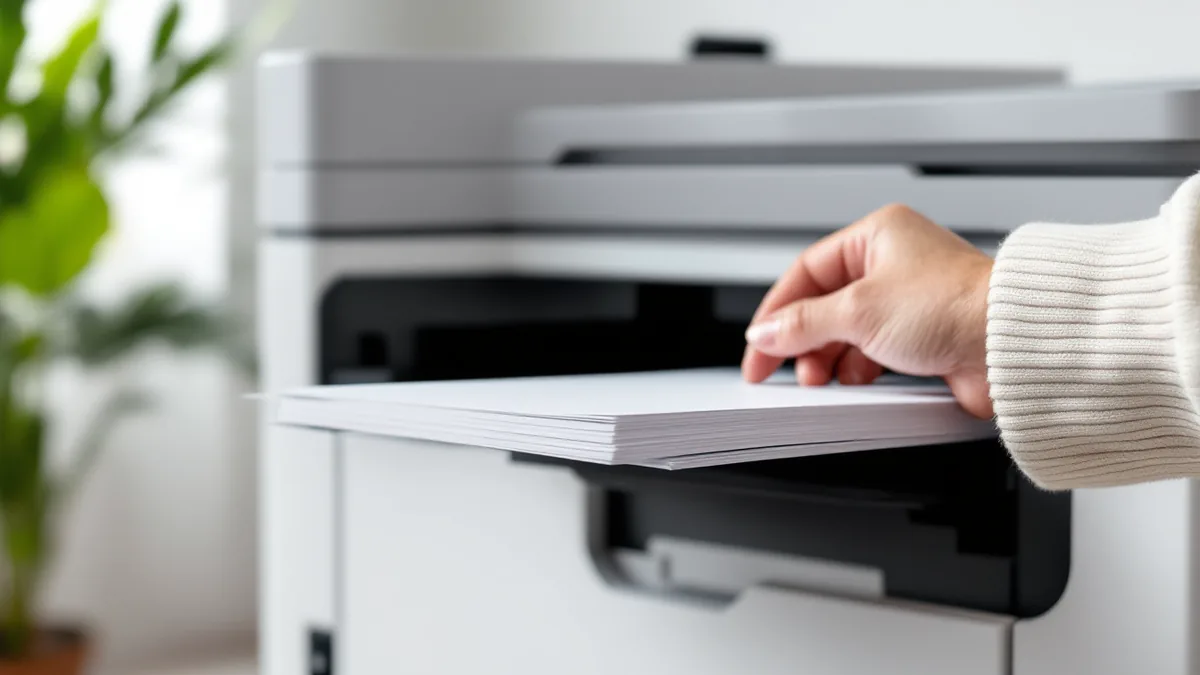
“If you ask any IT person what the number one most annoying thing to troubleshoot is, they’re going to say printers 100%.” I stand by every word. Part of what makes printers miserable is that the printer is rarely the only suspect. It could be the device, the network it sits on, or the driver on one computer, and your ticket can cut that list down to one.
Try one thing before you write. Ask the person at the next desk to print something. Takes a minute. If theirs comes out and yours doesn’t, say so, because that points at your workstation and not the printer. If the printer’s own panel is showing a message, copy that down too.
Something Lost
This one arrives as a description, not a name. “An email disappeared. A file was here a moment ago, it’s gone. The whole folder is gone.” That’s how the calls sound.
Four details matter here. What it was, by file name or subject line. Where it lived, whether that’s your mailbox, a shared drive, OneDrive, or your desktop. When you last saw it. And what happened just before it went missing, including a move, a rename, or a sync app acting strangely. Then send the ticket today, not tomorrow. Microsoft’s recovery windows for deleted email and files start counting when the item disappears, not when somebody notices, and some of them are shorter than most people expect, so a day spent waiting to see if the file turns up can be a day you don’t get back.
Checking your own Deleted Items folder or the Recycle Bin is fine. Restoring a shared folder from backup is a different matter, and I’m blunt about it. “I don’t recommend anybody mess around with backup unless they know what they’re doing. ‘Cause if you don’t know what you’re doing, you could overwrite an entire shared folder or something, and you’ve just erased someone’s entire last day of work.” Write the ticket instead.
Outlook
Outlook tickets go faster when you tell us which Outlook. Windows users can be on the new Outlook or on classic Outlook, and the fixes aren’t the same. Microsoft’s own tip is to look for a Settings button in the top right corner. If the Settings button is there, you have the new Outlook, and if it’s missing, you’re on classic.
Then a test worth thirty seconds, if your email runs on Microsoft 365. Sign in to Outlook on the web at outlook.office.com and check whether the missing mail, the stuck folder, or the search that returns nothing behaves the same way there. If the web version works fine, the problem usually lives in the app on your computer rather than in your mailbox. Put the answer in the ticket either way.
QuickBooks
“QuickBooks and Outlook have the most application issues of any other programs.” For QuickBooks Desktop there’s one shortcut almost nobody knows about. Intuit’s own instructions say to press F2 (or Ctrl+1) to open the Product Information window, which shows your product name and release. Include both, plus the error code exactly as it appears. QuickBooks error codes are specific, and a code paired with a release number narrows the fix quickly.
Then the question that sorts nearly every QuickBooks ticket. Is it just you, or everyone? One person who can’t open the company file is usually a workstation problem. A whole office locked out at once tends to point at the computer hosting the file. Say whether you’re in the office or connecting from home over the VPN, too, because QuickBooks Desktop was not designed to read its company file across a slow link, and that one detail changes where we look first.
What You Don’t Need to Figure Out
The cause. Honestly, a ticket that guesses at the cause can slow things down, because the technician then has to decide whether to trust the guess, and a confident wrong guess like “the internet is down” sends the first five minutes of the call in the wrong direction when the real problem was one cable under one desk. Describe what you saw. We’ll take it from there.
Skip the fourth restart, too. One restart is reasonable, and worth mentioning in the ticket. Reinstalling software, deleting a profile, or moving files around to see if it helps tends to erase the evidence of what went wrong in the first place.
Screen Sharing, Not a Technician in Your Chair
Most of these tickets end in a remote session, and people who haven’t had one before sometimes picture a stranger taking over their computer while they stand around waiting by the coffee machine for their desk back. It hasn’t worked that way in a long time. “Most things we can get on pretty quickly and look at it with you. You don’t have to move from your desk. It’s more of a screen sharing rather than a hijacking of your whole desk space.”
So stay near the computer after you send the ticket, and keep the phone you listed close by. You’ll watch the fix happen, and you can say “that’s the error” the moment it shows up, which beats any written description. Not everything, mind you. Some problems still need hands on hardware. Whether a problem needs a visit at all is its own question, and a clear ticket helps answer it.

Fast Is Relative
I’ll be straight about expectations, because they shape how people write tickets. “Everybody wants to pick up the phone, get you on the phone, and have you on their computer within 30 seconds.” The other half of that thought is the part I believe most. “It’s never going to be fast enough for what they want.”
VJNetworks responds within 15 minutes during business hours, and a lot of the time it’s quicker. Thirty seconds? Not for anyone. What we can do is make the first call count, and a ticket with those six details gets most of the way there. Support is unlimited under our managed agreements, so there’s no meter running and no reason to save small problems up for a ticket that feels big enough. What an agreement covers beyond the help desk is laid out in what’s actually included in an IT support contract.
Common Questions About IT Tickets
Call or ticket, which actually gets a faster answer?
Is it worth a ticket if the problem is tiny?
How do I decide how urgent my ticket is?
I don’t understand the error message. Should I still send it?
Three things are broken. One ticket or three?
Do I need to stay at my desk after I send it?
Talk with our team about how our help desk handles tickets, and what a 15-minute response during business hours looks like in practice. No cost, no obligation.