

A break glass account is an emergency Global Administrator login kept for when normal admin sign-in fails, so the business can still get into Microsoft 365. Microsoft recommends two or more, tied to no individual employee.
Mike Stoveken’s order for a small-business IT roadmap includes a step for securing the admin accounts and setting up a break-glass global admin account. His reason takes one sentence. “Some companies don’t have that and lose access to their global admin, and then they can’t do anything.” Microsoft’s guidance says it more formally, listing among its reasons for these accounts the day the person with the most recent Global Administrator access leaves, after which the organization might be unable to recover the account.
This post covers what the account is and how it gets built, in plain terms. It is step four in the order laid out in our IT roadmap for a 20-person business. For the wider security picture, see our cybersecurity services for small businesses.
What a Break Glass Account Actually Is
A break glass account, which Microsoft calls an emergency access account, is a cloud-only user holding the Global Administrator role, set up on the onmicrosoft.com domain and kept apart from the everyday admin accounts used for routine work. Microsoft’s emergency access guidance says to use it only for “break glass” scenarios where normal administrative accounts can’t be used.
Think of the emergency box behind a pane of glass. You break it on a bad day. Otherwise it stays shut.
Microsoft lists five situations the account exists for. Four are below, in plain terms. The fifth involves approval settings in Privileged Identity Management.
- The person with the most recent Global Administrator access leaves the organization.
- The admins registered MFA on their individual devices, and those devices or the service are unavailable. Microsoft’s example is a cell network outage that stops them from answering phone calls or receiving text messages, the only two methods they registered.
- The accounts are federated to a separate identity provider, and that provider has an outage, so sign-ins that redirect to it fail.
- Something nobody planned for. Microsoft names a natural disaster, when mobile phones or other networks might be unavailable.
In most of these, nobody did anything wrong on the day. The everyday admin login depended on one person, one phone, or one outside service. Then that thing was gone.
Break Glass Account vs. Everyday Admin Account
It is not a spare login for your IT person. The break glass column below follows Microsoft’s recommended setup.
| Setting | Everyday admin account | Break glass account |
|---|---|---|
| Who it belongs to | A named admin | No individual user, and no employee-supplied device such as a phone |
| Sign-in address | Usually the company domain | Cloud-only, on the onmicrosoft.com domain |
| Second factor | Whatever the admins use, for example the Microsoft Authenticator app | A passkey (FIDO2) or certificate-based authentication, different from the everyday admins’ method |
| Conditional Access | Covered by your policies | Excluded from policies that block or restrict sign-in |
| Where the credentials live | With the admin who uses the account | Secure, fireproof safes in separate locations |
| When it is used | For routine admin work | Only when absolutely necessary, and in test drills, with an alert on every use |
How to Set Up a Break Glass Account in Microsoft 365
Microsoft last updated its emergency access page in June 2026. The six steps below follow its order, with two of its steps combined into one.
- 1Create the accounts Two or more cloud-only users on the onmicrosoft.com domain, not federated or synchronized from an on-premises environment, each assigned the Global Administrator role.
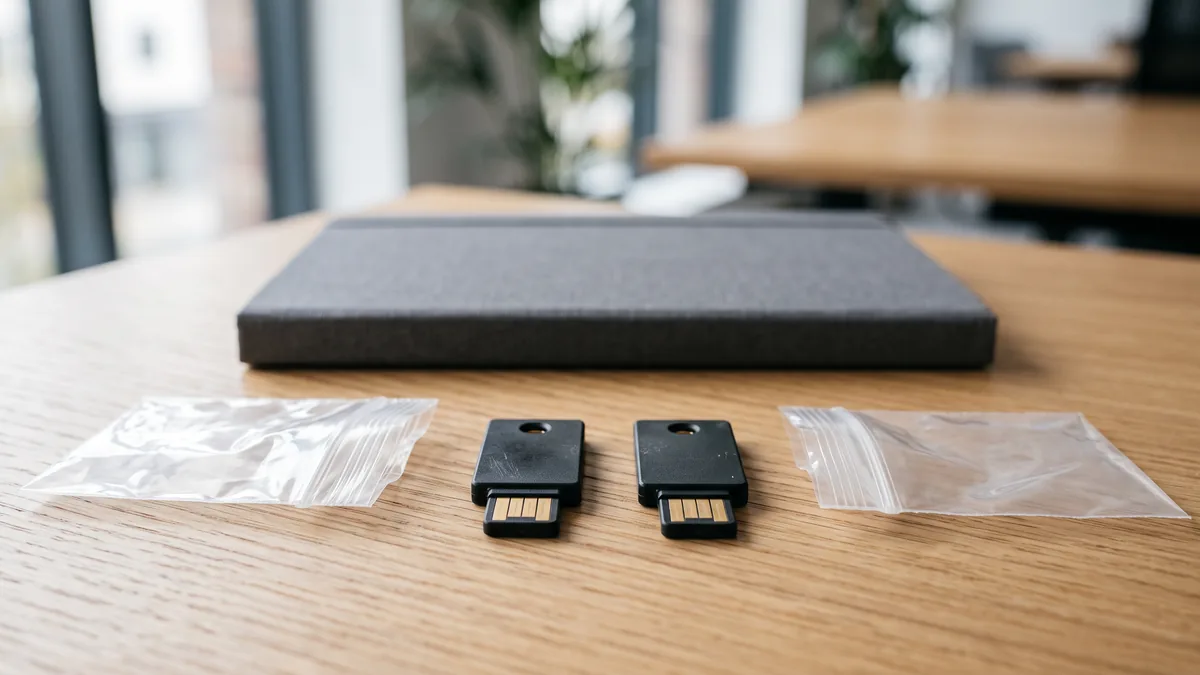
- 2Register a passkey (FIDO2) Microsoft recommends a passkey (FIDO2). Certificate-based authentication is the alternative if your organization already has a public key infrastructure.
- 3Check Conditional Access Exclude the accounts, through a dedicated security group, from any policy that blocks or restricts sign-in. Report-only policies don’t need an exclusion.
- 4Put the credentials away Secure, fireproof safes in separate locations, known only to the people authorized to use them.
- 5Alert on every sign-in Send the sign-in logs to a tool that can email or text your administrators whenever either account signs in.
- 6Test it Confirm the accounts can sign in and perform administrative tasks at least every 90 days, and again after a change in IT staff.
Step three has a catch. Leaving the account out of Conditional Access does not exempt it from Microsoft’s mandatory MFA. That mandatory MFA plan covers sign-ins to admin portals such as the Microsoft 365 admin center, where enforcement began gradually in February 2025, and it states that break glass or emergency access accounts are also required to sign in with MFA once enforcement begins. Microsoft’s answer is a passkey (FIDO2) or certificate-based authentication. Both satisfy the requirement.
If your tenant has no Conditional Access policies, there is nothing to exclude the account from yet, since Conditional Access requires a Microsoft Entra ID P1 or P2 license, and our comparison of which Microsoft 365 license carries Conditional Access shows where it comes bundled.

Where the Keys Live, and Who Can Reach Them
Microsoft’s wording is specific. Store the credentials in a known secure location that’s available to multiple members of the administration team, keep them known only to the people authorized to use them, and don’t connect the accounts to employee-supplied devices, such as phones. For the physical side, it says “secure, fireproof safes that are in secure, separate locations.”
Separate means separate. One safe at the office and another at a second site is one way to meet it.
We would add one question of our own. Could the owner get to at least one set without asking anybody? If the only copy sits in the IT person’s desk drawer, the business is back to depending on one person, which is the same problem we cover in who owns the company Microsoft account when an IT person leaves.

Keeping a Break Glass Account Healthy
An untested emergency account can fail quietly. Microsoft warns that its credential must not expire or fall into automated cleanup for lack of use, and that an enforced Conditional Access policy could prevent sign-in during the exact emergency the account is meant for.
Three ongoing habits follow.
- An alert on every sign-in. Microsoft’s example sends Microsoft Entra sign-in logs to Azure Monitor and raises a critical-severity alert when either account signs in. Microsoft Sentinel or another tool can do the same job.
- A drill at least every 90 days, after a recent change in IT staff, and when the organization’s Microsoft Entra subscriptions change. The drill checks that the accounts can sign in and perform administrative tasks.
- A review after each use, to decide whether it was a planned drill, a real emergency, or misuse.
Safes get the same treatment. Microsoft says to change the combinations regularly and after someone with access leaves the organization.
What Changes When Text-Message Codes Retire
A break glass account built to Microsoft’s guidance never relies on a text message, because the recommended methods are a passkey or a certificate. Everyday admins are another matter. Microsoft-provided SMS and voice authentication is being retired on a schedule, and Global Administrators have their own date.
| Date | What happens |
|---|---|
| February 2025 | MFA enforcement begins gradually for sign-ins to the Microsoft 365 admin center |
| September 1, 2026 | Passkeys become the default authentication experience and are automatically enabled for users enabled for SMS or voice |
| February 1, 2027 | Microsoft-provided SMS and voice authentication retires for all users except Global Administrators and external users |
| July 1, 2027 | The same retirement takes effect for Global Administrators and external users |
After July 1, 2027, a Global Administrator whose only available MFA method is SMS or voice must register a passkey during sign-in to keep accessing the account, and Microsoft’s retirement page calls that prompt blocking and says there is no opt-out. From October 30, 2026, organizations that still need SMS or voice can configure a telephony provider through Microsoft Security Store instead. A passkey still has to be unlocked, with a PIN or a biometric gesture.
Other admin roles aren’t in the July group. The February 1, 2027 date covers every user except Global Administrators and external users.
Microsoft publishes a PowerShell script to find who in a tenant is still enabled for SMS or voice. Our piece on why MFA alone isn’t enough anymore covers the wider sign-in picture.
Where This Sits in the Bigger Plan
Mike’s recommended order for a small business starts with a security baseline, then endpoint security where the current setup isn’t sufficient, then complex passwords and MFA on internet-facing accounts. Securing the admin accounts and setting up the break-glass account comes fourth. Training comes fifth. Order matters.
The full sequence lives in our IT roadmap for a 20-person business, the order we recommend in vCIO strategy and roadmapping. VJNetworks supports small businesses across Rockland, Westchester, and Bergen counties, and our response standard is 15 minutes during business hours.
What Owners Ask Before Setting One Up
So how many break glass accounts does a small business need?
Can a break glass account skip MFA?
Is a second Global Admin the same thing?
How often do you test one?
Who is actually allowed to use it?
What happens to the account when Microsoft retires text-message codes?
Talk with our team about emergency admin access for your Microsoft 365 tenant. No cost, no obligation.