
Windows 11 hardware requirements come down to a compatible 64-bit processor, TPM 2.0, Secure Boot capable UEFI firmware, 4 GB of memory, and 64 GB of storage. For an office PC, check the processor model and the TPM first.
Windows 10 reached end of support on October 14, 2025. A Windows 10 PC keeps working after that date, Microsoft says, but it no longer gets security fixes unless it is enrolled in the paid update program. Microsoft lists four ways forward. Upgrade the PCs that are eligible, replace the ones that aren’t with new Windows 11 PCs, pay for Extended Security Updates, or move people onto Windows 365 Cloud PCs.
Which of those fits a given machine depends on the hardware inside it. VJNetworks has supported small businesses across Rockland, Westchester, and Bergen since 2004 through services like our help desk and remote IT support, and the question is simple. Can my computers run it? The honest answer depends on each machine. Here’s how to tell.
Windows 11 Hardware Requirements, Straight From Microsoft
The Windows 11 hardware requirements are the minimum a PC must meet to install or upgrade to Windows 11: a compatible 64-bit processor of 1 GHz or faster with two or more cores, 4 GB of memory, 64 GB of available storage, DirectX 12 graphics, Secure Boot capable UEFI firmware, TPM 2.0, and a 720p display.
Microsoft publishes the list on its Windows 11 requirements page, last updated in July 2026. Here it is in full.
| Requirement | Microsoft’s minimum |
|---|---|
| Processor | 1 GHz or faster with two or more cores, on a compatible 64-bit processor or system on a chip |
| Memory | 4 GB or greater |
| Storage | 64 GB or greater available disk space |
| Graphics | Compatible with DirectX 12 or later, with a WDDM 2.0 driver |
| System firmware | UEFI, Secure Boot capable |
| TPM | Trusted Platform Module version 2.0 |
| Display | High definition (720p), 9 inches or greater, 8 bits per color channel |
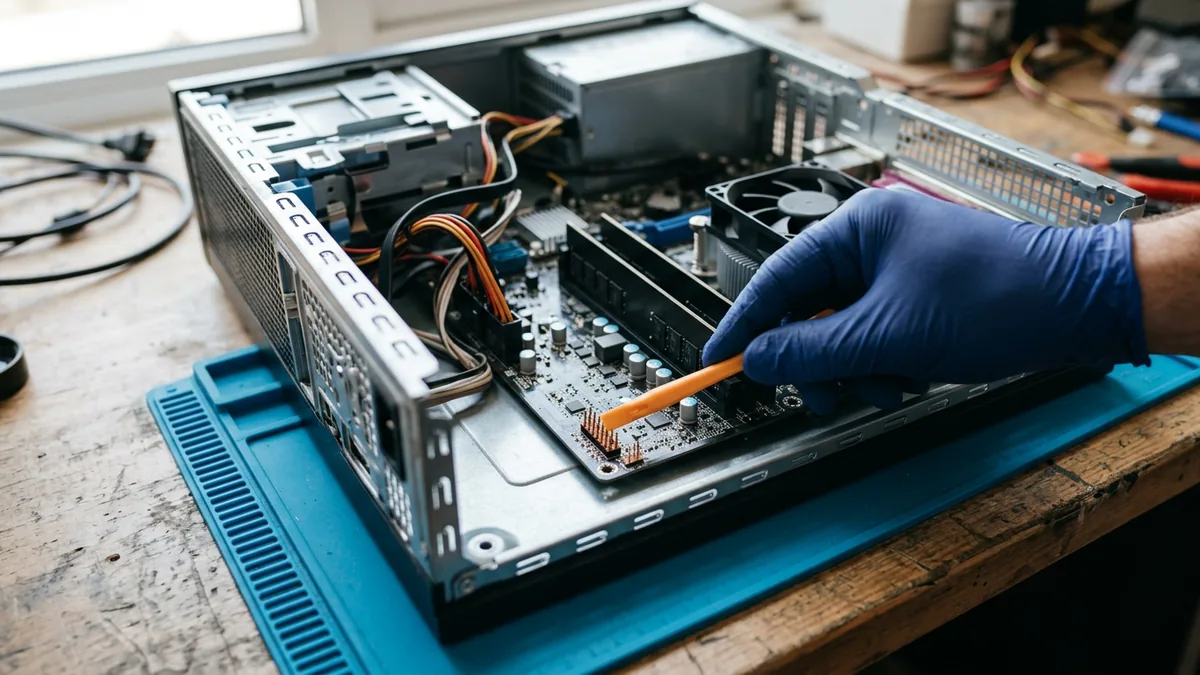
Memory, storage, and graphics are numbers you can read off the machine. The processor, the TPM, and the firmware take more checking. They get their own section.
The Three Requirements That Take Real Checking
Start with the processor. It is the one line on the list that depends on a specific model rather than a number. Microsoft’s Intel list starts its Core i3, i5, i7, and i9 entries at the 8th generation, and its AMD list starts its desktop Ryzen entries at 2000-series chips such as the Ryzen 5 2600. A 7th-generation Core i5 desktop is not on the list. Microsoft also says later generations count as supported even before a list catches up with them. Check the model number. Not the purchase date.
TPM 2.0 comes next. Microsoft describes a TPM as a secure crypto-processor that generates, stores, and limits the use of cryptographic keys, and it can be a separate chip or built into the processor’s firmware, which is why the settings carry names like Intel PTT and AMD fTPM. A PC can have one and have it switched off. Microsoft’s TPM guide says most retail motherboards sold to people building their own PCs ship with it turned off, and that the switch lives in the firmware settings, often labeled Security Device or something similar.
Checking is quick. In Windows Security, under Device security, a missing security processor section can mean the TPM is simply disabled, while a specification version below 2.0 means the PC does not meet the requirement, and for that case Microsoft points you to the PC’s manufacturer.
Then there is firmware, and here the wording matters. Microsoft’s Secure Boot guidance says the requirement is only that the PC be Secure Boot capable. Turning Secure Boot on is recommended. It isn’t required. Microsoft’s 2011 Secure Boot certificates have also begun to expire, and our guide to the Secure Boot certificate expiration covers what that means for older office PCs.
Firmware mode is different. A PC set to boot in legacy BIOS mode, also called CSM, has to be switched to UEFI, and on an existing installation that typically means converting the system disk from MBR to GPT first with Microsoft’s MBR2GPT tool, whose own warning reads “These changes cannot be undone!” That is work for whoever runs your IT. It is not a toggle to flip on a PC full of client files.
Sorting an Office Into Upgrade, Fix, and Replace
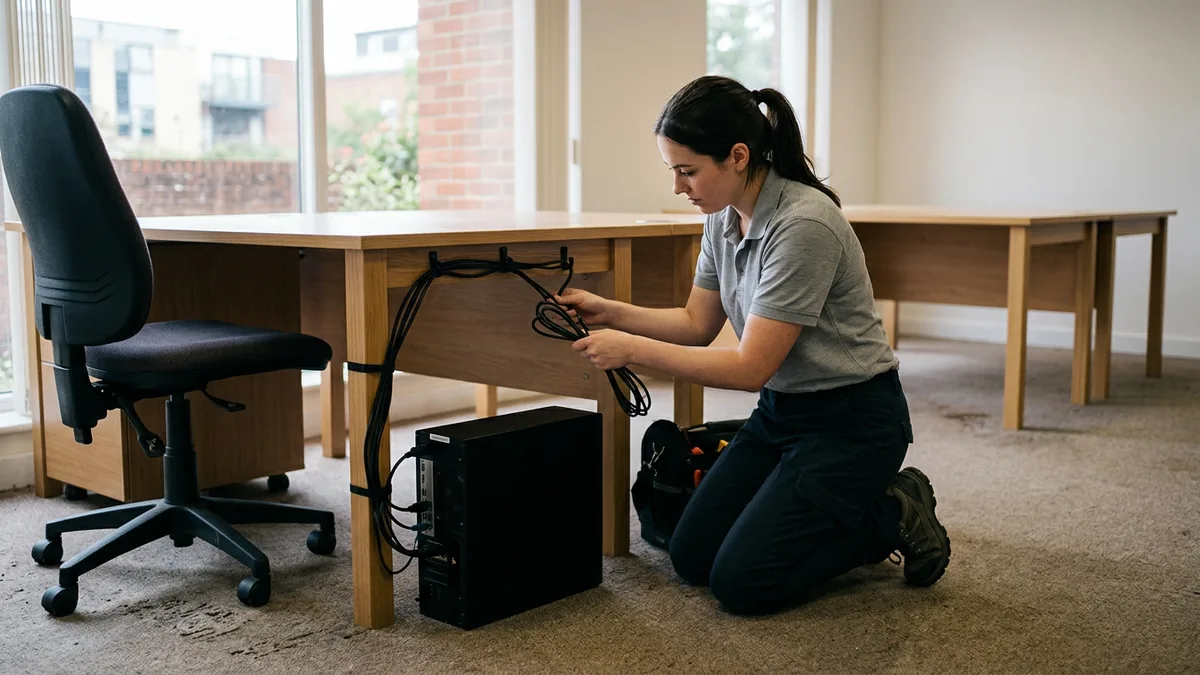
Picture a 14-person accounting office with 14 desktops bought across five years. A hypothetical, not a client. Run each machine through the checks above and the machines can land in different groups.
| What the PC looks like | Can it upgrade? | What it takes |
|---|---|---|
| Meets every line of Microsoft’s list | Yes | Windows Update, or a planned rollout |
| Supported processor, but the TPM is switched off | Yes, after a firmware change | Turning the TPM on in the firmware settings |
| Supported processor, firmware set to legacy BIOS mode | Yes, with care | A disk conversion and a switch to UEFI, done by IT |
| Under 4 GB of memory or 64 GB of free space | Possibly | Freeing space, or more memory or storage where the model allows it |
| Processor not on Microsoft’s list, or a TPM below 2.0 | Not as it stands | Replace it, or keep it on Windows 10 with paid updates while you plan |
Nobody should visit fourteen desks to fill in that table by hand. Microsoft points Windows 10 Home, Pro, and Pro for Workstations users to its PC Health Check app, and says people on Enterprise and Education editions should rely on their IT administrators. According to Microsoft’s Windows 11 planning guide, organizations that manage updates through Windows Update client policies get a safeguard too, because devices that don’t meet the minimums aren’t automatically offered the upgrade. If an IT provider already manages your PCs, ask for readiness across the whole fleet instead of a check at each desk.
A caution on the shortcut. Plenty of guides explain how to force Windows 11 onto an unsupported PC. Microsoft’s install guidance says it isn’t recommended, and for devices that don’t meet the minimums it recommends leaving them on Windows 10. I would not build an office on that workaround. Skip it.
What Waiting on Windows 10 Costs Per PC
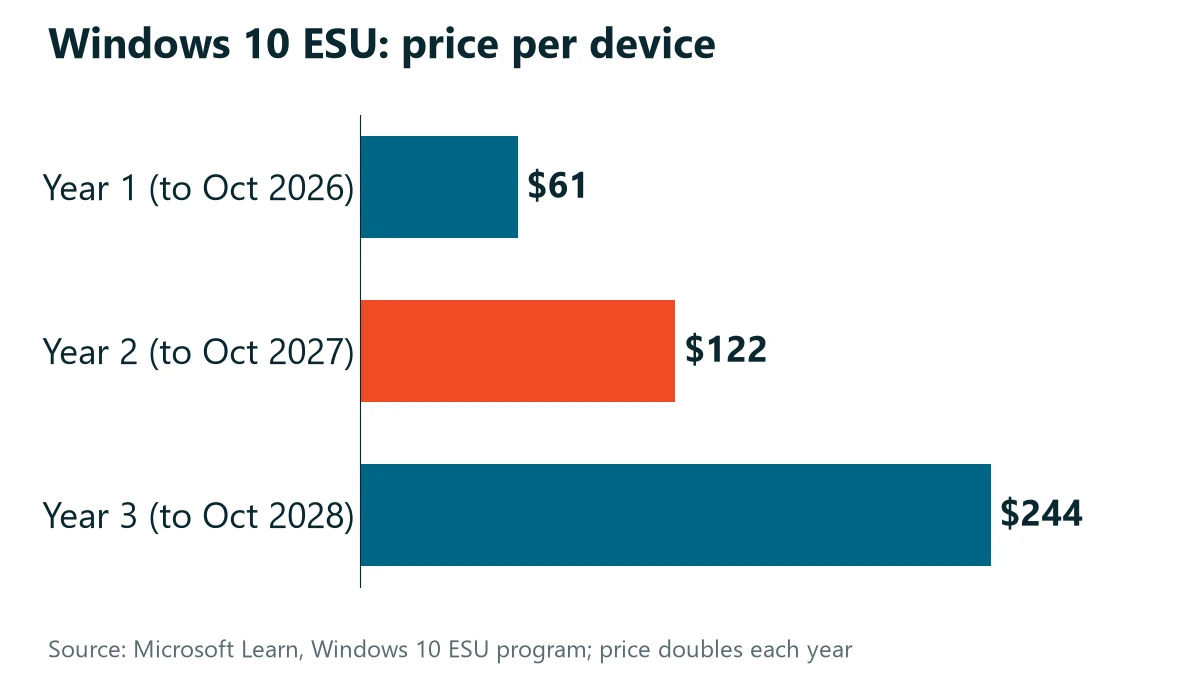
Microsoft sells Extended Security Updates to organizations through its volume licensing program at $61 per device for the first year, and the price doubles every consecutive year, for a maximum of three years. Per the ESU lifecycle dates, the first year ended on October 13, 2026, the second ends on October 12, 2027, and the third ends on October 10, 2028. Eligible PCs must be running Windows 10, version 22H2.
Two catches. A business that skipped year one cannot buy year two alone, because the updates are cumulative and Microsoft requires the earlier year to be paid for as well. And ESU is security updates only. Microsoft’s lifecycle FAQ calls the program a last resort paid option and a temporary bridge, with no new features and no general technical support. One exception is worth knowing: Microsoft includes ESU at no additional cost for Windows 10 virtual machines in Windows 365 and Azure Virtual Desktop.
Say five of the fourteen PCs in that hypothetical office fail the processor or TPM test, and two years of coverage for those five is $61 plus $122, times five, which comes to $915, with a third year adding $1,220 more. Those figures are licensing alone. Nothing in them reflects the time it takes to enroll and track the machines.
Either way, the bridge ends. Our guide to end-of-support dates for your 2027 roadmap lays the Windows 10 dates beside the others coming up.
Replacing PCs Is Its Own Budget Line
When a machine does need to go, the hardware is a separate purchase from your managed IT agreement. Deciding which machines to replace, and in what order, is the kind of planning vCIO strategy and roadmapping is for, so the spending lands on a schedule instead of all at once.
Replacement is also a natural moment to standardize. Each PC maker ships its own drivers and its own firmware updates, model by model, so a mixed fleet means more to keep patched. We wrote about that in what letting employees pick their own laptops really costs, and our view is that a short approved list is easier to support than an open catalog.
Servers keep their own clock. Windows 11 is a desktop question, while the server operating system under your file shares has its own dates, covered in our post on Windows Server 2016 reaching end of support. Plan both as part of your managed IT services, on separate timelines.
Things People Ask Before Buying New PCs
Does every Windows 10 PC in an office have to be replaced?
How do I check whether a PC can run Windows 11?
Can a PC without TPM 2.0 be made to qualify?
Which processors does Windows 11 support?
Is it safe to run Windows 10 until the paid updates stop?
Do the PCs need a particular Windows 10 version before they upgrade?
Talk with our team about which of your PCs can take Windows 11 and when to plan for the rest. No cost, no obligation.