
Letting employees pick their own laptops usually saves a little at the register and costs more over the machine’s life, in setup labor, security gaps, and support time, because every different model becomes its own small IT project.
I understand why owners allow it. Someone new joins, they have strong opinions about keyboards, and a person who likes their computer is easier to keep than one who resents it. The request sounds small. For the first laptop, it is.
VJNetworks runs help desk and remote IT support for small businesses in Rockland, Westchester, and Bergen, and someone from my team responds within 15 minutes during business hours. What happens after those 15 minutes depends heavily on one thing, whether we have seen that laptop before. My position is narrower than “never let anyone choose.” Choosing from a short list, yes. Choosing anything at all, no. The cost lives in the gap between those two.
What “Picking Their Own” Usually Means
An employee-choice laptop policy lets each person decide the make and model of their work computer, whether they bring one from home, buy one with a company stipend, or name the one the company orders. The restrained version, which Microsoft’s licensing overview calls choose your own device, or CYOD, limits that choice to an approved list.
Those are three different arrangements. They share one problem. Nobody decided in advance what the company’s computers actually are.
- The personal machine, used for work because it was already there. The company pays nothing up front and controls nothing afterward.
- A stipend toward whatever the person buys, often at a retail store and sometimes on a personal card that gets reimbursed. Whose laptop is that when they leave? Most offices have never written the answer down.
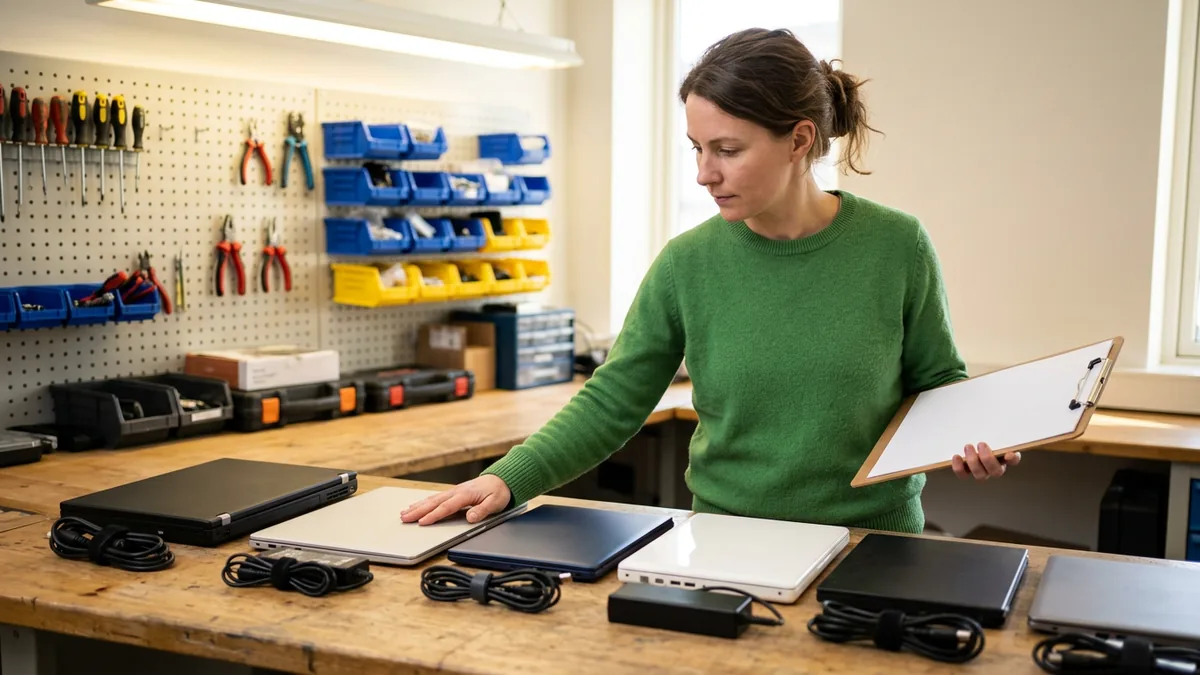
- The open catalog. The company buys whatever each person asks for, so at least the company owns the result. It also owns five models, four kinds of charger, and three different firmware update tools.
None of these is reckless on its own. Each one is a reasonable exception made for a reasonable person, which is exactly how shadow IT in a small business starts too.
The Cheaper Laptop Is Usually Running Windows Home
Much of the difference between a consumer laptop and a business one sits in things the shelf tag doesn’t mention. The edition of Windows is the first of them.
Microsoft is direct about this. Its documentation says you can configure Microsoft Entra join for all Windows 11 and Windows 10 devices except for Home editions. Entra join is how a laptop becomes a company computer in a Microsoft 365 business. Staff sign in with their work accounts, and with Intune in place the laptop takes its settings from the company and reports whether it is encrypted and patched. A Home laptop can’t do that. When Microsoft lists what counts as Windows for business in its Microsoft 365 Business Premium FAQ, it names Windows 11 Pro and Pro for Workstations, and that is the whole list.
It gets more specific. Windows 11 Home requires internet connectivity and a Microsoft account during initial setup, so the machine starts life signed in to whatever account the buyer used, which is usually a personal one. Then there is encryption. On a laptop that isn’t joined to Entra ID or a domain, Windows device encryption backs the recovery key up to the Microsoft account of the administrator who set it up. Whose account is that, in practice? The employee’s. The key to the company’s data ends up in their personal Microsoft account.
None of this is a defect. Home is built for homes. Business-class models usually arrive with Pro already installed, a point Microsoft’s licensing overview makes as well, and a Home machine needs a paid upgrade to Pro, bought one laptop at a time, before it can join. I would also reset it afterward. A computer that began life on somebody’s personal account is not one I’d hand to a business without starting over.
Setup Can Start Before the Box Is Opened
A standard fleet can belong to your company before it ships. Microsoft’s Windows Autopilot registration overview says that ideally the OEM, reseller, or distributor the devices were purchased from registers them to the organization. The laptop shows up, the employee signs in with a work account, and the company’s settings, apps, and encryption arrive on their own.
The laptop somebody picked up at a big-box store on Saturday does not arrive that way. Its hardware identity usually has to be collected from the running machine and uploaded by hand, or it gets built the long way. Macs have the same split. Apple lets an organization add a Mac it didn’t buy through Apple or an authorized reseller by using Apple Configurator, but the user then gets a 30-day provisional period to release the device from the organization’s management. Thirty days in which it can quietly leave the list.
Why reset a store-bought machine rather than trust it? The CIS Controls, about as vendor-neutral as security guidance gets, put it this way. As delivered by manufacturers and resellers, default configurations are normally geared towards ease of deployment and ease of use rather than security. Trial antivirus, the manufacturer’s support app, the occasional extra browser or game launcher. Every model ships with its own assortment. Standardize the model and you learn that assortment once, instead of once per person.
Every Brand Patches Its Own Firmware
Windows Update takes care of Windows. Underneath it is firmware, the BIOS or UEFI code that runs before the operating system starts, and firmware comes from whoever built the laptop, model by model.
In December 2023, researchers disclosed flaws in the code that draws the manufacturer’s logo during boot, collectively known as LogoFAIL. The CERT Coordination Center’s vulnerability note traced them to the firmware suppliers that most PC makers build on, so the fixes had to travel from those suppliers to each laptop manufacturer and then out to each affected model as a firmware update. An office running one laptop model had one advisory to watch. An office where everyone picked their own had one per brand, sometimes one per model year, and each arrived on its own schedule.
The tooling multiplies the same way. Dell has Dell Command Update. Lenovo has System Update. HP has HP Image Assistant. All three do their job well on their own hardware, and none of them touches anyone else’s.
What It Does to the Help Desk
Printers are the second most common thing people call us about, right behind passwords. On a standard fleet a printer problem tends to be one driver on one model, fixed once for everyone. On a mixed fleet it is the same printer failing from two laptops out of nine, for reasons that turn out to be specific to those two.
The opening minutes of a ticket change too. With a model we know, the technician already knows where its drivers come from, what its dock does, and which power setting keeps it from waking up properly. With an unfamiliar one, those minutes go to working out what the machine is. That time never shows up on an invoice. It shows up as a person waiting to get back to work.
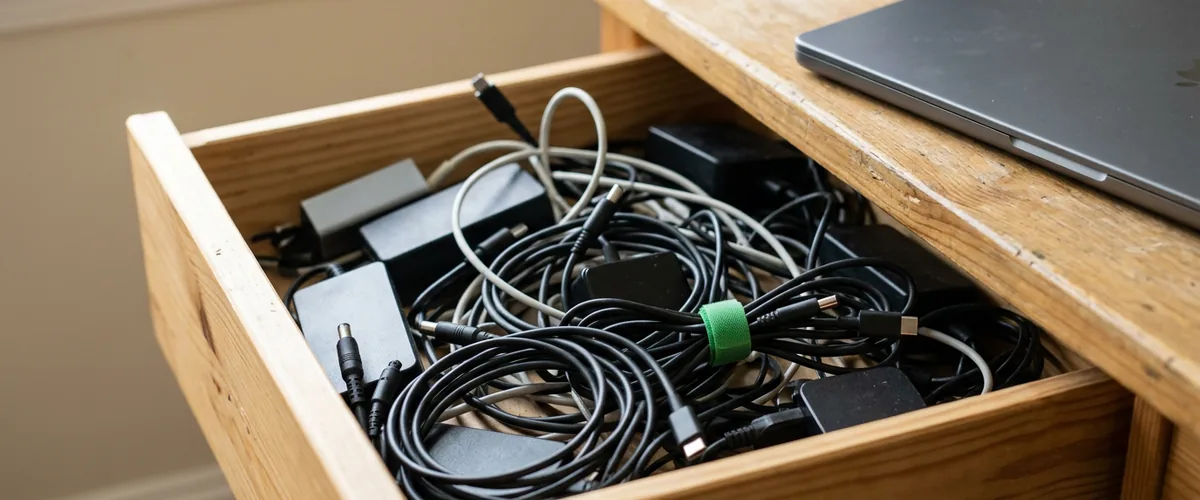
Accessories are the quiet version of the same problem. A USB-C plug on both ends does not mean a charger supplies enough power for a larger laptop, or that a dock built for one brand of laptop drives monitors the same way from another. A standard fleet keeps one spare charger in a drawer. A mixed fleet keeps a drawer full of chargers, and the right one is at somebody’s house.
The Line Items Nobody Prices In
Here is the comparison as I would lay it out for an owner deciding the policy.
| Line item | Short approved list | Everyone picks their own |
|---|---|---|
| Windows edition | Pro, installed at the factory on business-class models | Often Home, which can’t join Entra ID until it is upgraded to Pro |
| Enrollment | Registered to your company by the seller before it ships | Hardware identity collected by hand, or a Mac with a 30-day release window |
| Encryption recovery key | Stored in your company’s Entra ID | Stored in whichever Microsoft account set the laptop up |
| Firmware and drivers | One manufacturer’s tool and one list of models to watch | One tool per brand and an advisory per model |
| Chargers and docks | One spare fits everyone | A drawer of spares, most of them wrong |
| Help desk time | The technician already knows the machine | The first minutes go to identifying it |
| When someone leaves | Company property, wiped and reissued | A conversation about whose laptop it is |
Not one of those rows is dramatic. Added together across a ten-person office and a four-year life, they are a cost nobody wrote into the budget.
When Someone Leaves
This is where a stipend policy costs the most, and it rarely comes up until the week someone gives notice. A laptop the company owns and manages can be wiped remotely and handed to the next hire. A laptop the employee bought, even with company money, is a harder conversation.
Microsoft’s setup guidance for Business Premium recommends full device management for company-owned devices and app-level protection for personal ones. App-level protection can remove company data from the managed apps while leaving the rest of the machine alone. On a phone that is a sensible trade. On a laptop holding downloaded client files and a synced desktop folder, it covers only part of the problem. For the rest of what a laptop outside the office needs, see our remote work security basics.
Onboarding and offboarding are part of the work we do for clients. With company-owned, standard laptops, offboarding is a routine task. With personal ones it becomes a negotiation.
What I Would Do Instead
Microsoft sells Windows for every kind of laptop there is, and it still tells Business Premium customers that all businesses should seek to standardize their IT environment to help reduce maintenance and security costs over time. I agree with that, with one amendment. Standardize the list, not the person.

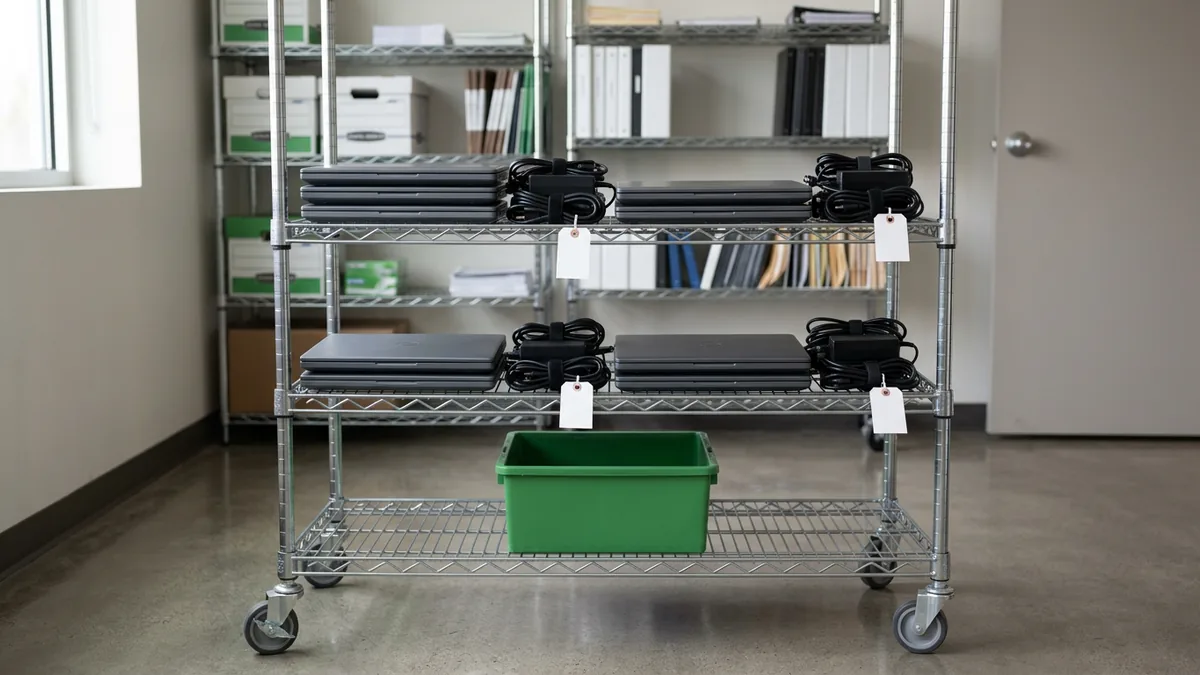
- Two Windows models. A standard one for most people, and a heavier one for whoever works with large files, design software, or thirty open browser tabs. Three is the ceiling I would accept in an office under 60 people.
- Business-class lines, bought in their middle configurations rather than their top ones. Dell Latitude, Lenovo ThinkPad, and HP EliteBook all qualify, and they are normally sold with Windows 11 Pro.
- Buy them through a reseller or IT provider that can register each machine to your company before it ships.
- One dock family and one charger wattage across both models, chosen on purpose.
- Is a Mac genuinely needed for a role, say design work built around Mac-first software? Then approve one Mac model, buy it where it can be enrolled from day one, and budget honestly for supporting a second platform.
- Replace on a schedule so the list stays current. Our breakdown of what a 20-person office should budget for IT covers the hardware reserve.
Choice survives all of this. People still pick the screen size, the weight, the lighter model or the faster one. What they don’t pick is a platform the company then has to learn from scratch.
Quality business machines also last. A fleet of identical ones ages evenly, which turns the replacement year into something you plan instead of something that happens to you. Our managed IT services include holding clients to that list and flagging machines as they age. “Can we do it a cheaper way?” is a fair question to ask about a laptop. At the register the answer is often yes. Over the life of the machine, it usually isn’t.
Before You Write the Laptop Policy
Isn’t a laptop stipend cheaper than buying the laptops ourselves?
Can a Windows Home laptop be managed through Microsoft 365?
What if someone insists on a Mac?
How many laptop models should a small office standardize on?
We already have a mixed fleet. Do we replace everything now?
Can people just use their own laptop for work?
Does standardizing mean buying the most expensive business laptop?
We will go through the laptops your team uses today, which can stay, which can’t run Windows 11, and what a short approved list could look like for your office. No obligation.