

Your business owns its Microsoft 365 tenant, but in practice it answers to whoever holds the Global Administrator role, the domain registrar login, and the phone that answers the MFA prompt. Put all three in the company’s name now.
There is no single company Microsoft account, which is the first thing worth knowing. What most owners mean by the phrase is a Microsoft 365 tenant, the container that holds every mailbox, Teams chat, and SharePoint site. Around it sit a few accounts and records that decide who controls it. When your in-house IT person or long-time contractor leaves, the tenant stays. Control of it may not.
Keeping that control written down, so it lives somewhere besides one person’s head, is part of our co-managed IT services, where we work alongside internal IT people who are staying put. This post is about the mechanics. Which roles, which records, and where each one should sit before anyone hands in a resignation letter.

Who Actually Controls the Tenant
A Microsoft 365 tenant is controlled by whoever can sign in as a Global Administrator, because that role can change nearly every setting in the organization, including who else gets to be an administrator. The business owns the tenant on paper. The Global Admin accounts decide what that ownership is worth.
Microsoft’s own guidance is blunt about how the first one gets created. When a user signs up for a Microsoft cloud service, a tenant is created and that user is assigned the Global Administrator role by default. Think back to who signed up. Often it was the IT person, years ago, using whatever email address was handy at the time.
Five things decide who is really in charge, and two of them live outside Microsoft 365 entirely.
| What controls it | Where it lives | Whose name it belongs in |
|---|---|---|
| Global Administrator accounts | Microsoft 365 admin center, under Roles | At least two people at the company, plus two emergency accounts tied to no one |
| The admins’ MFA and recovery details | Each admin account’s security info | Company-held keys, phones, and email addresses |
| The domain name | An account at your domain registrar | The business as registrant, with a company email as the contact |
| DNS records | The registrar or a separate DNS host | A company login, not a personal one |
| Partner access and billing | Partner relationships and Billing pages in the admin center | Visible to an owner, reviewed on a schedule |
Global Admin, Fewer Than Five and Never Fewer Than Two
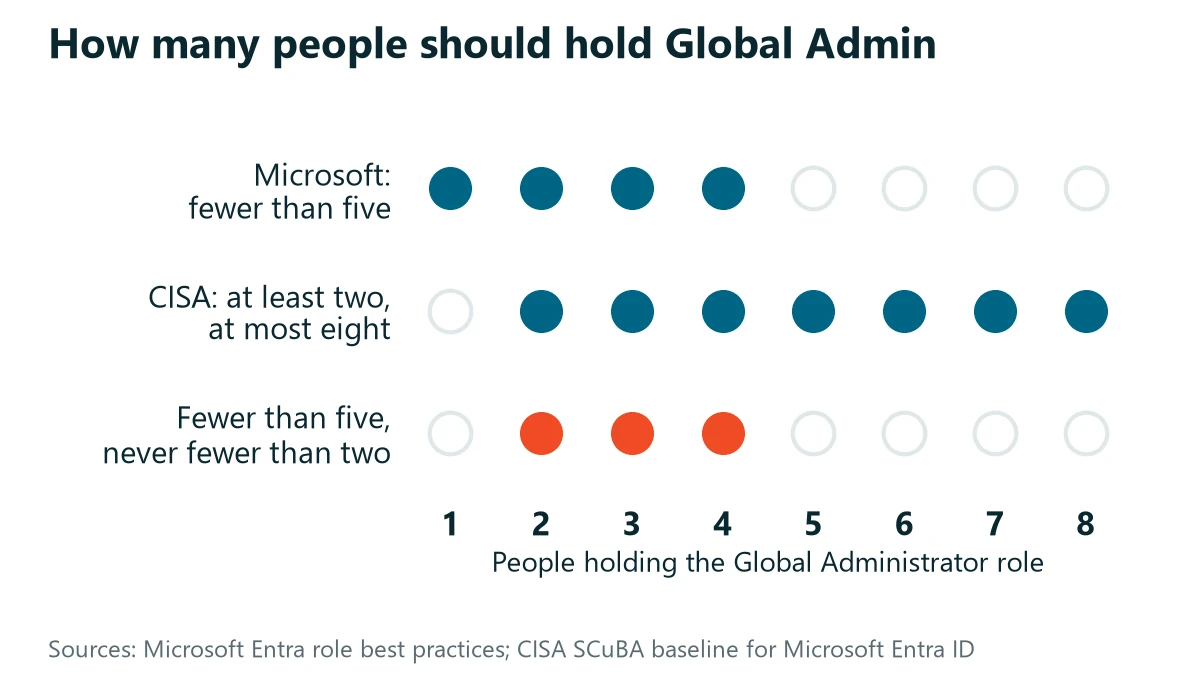
Microsoft recommends assigning the Global Administrator role to fewer than five people, because the role has essentially unrestricted access. CISA’s Secure Cloud Business Applications baseline for Microsoft Entra ID sets the floor as well as the ceiling. A minimum of two users and a maximum of eight should hold the role. Two is the number that matters here. One Global Admin is one resignation away from a support ticket with Microsoft.
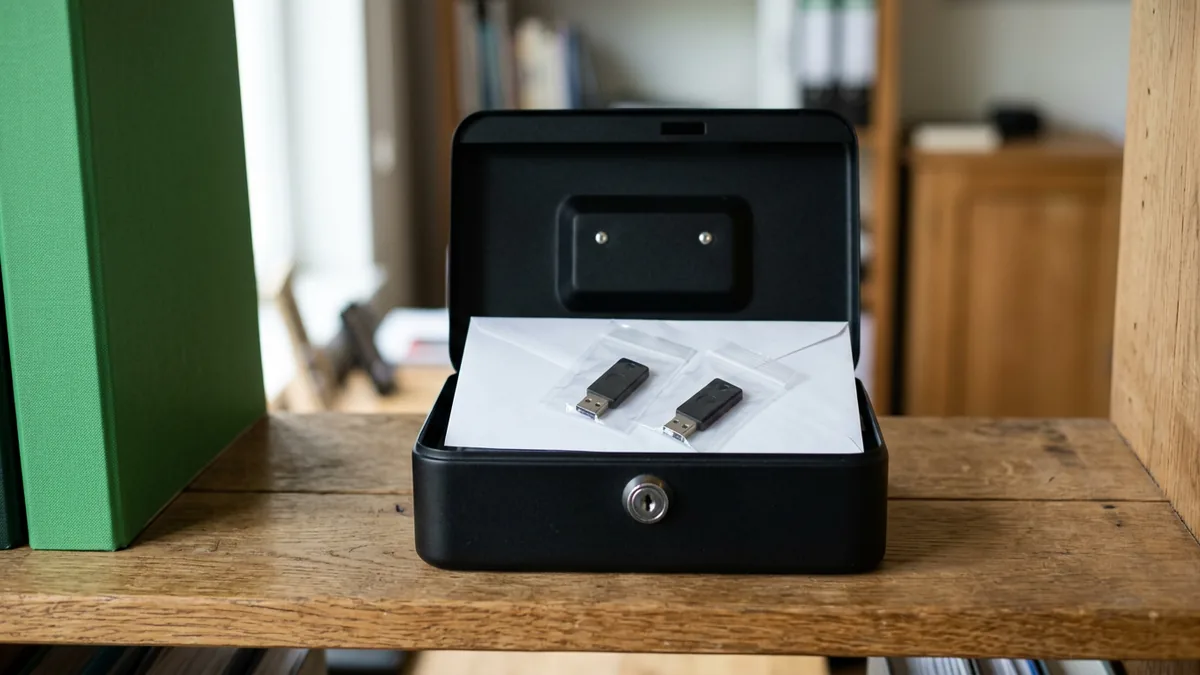
Microsoft goes further. Its guidance on emergency access accounts lists the situations they exist for, and one of them reads, word for word, “the person with the most recent Global Administrator access leaves the organization.” The recommendation is two or more of these emergency accounts, cloud-only, on the tenant’s own onmicrosoft.com address, not associated with any individual, and protected by a passkey on a FIDO2 security key rather than someone’s phone.
In practice that means two small hardware keys. Kept in two different secure places. Neither of them in the IT person’s desk drawer, and at least one of them somewhere the owner can reach without asking anyone. Microsoft also says to test that the accounts still work at least every 90 days and whenever IT staff change. The second trigger is the one this whole post is about.
The Phone That Answers the Prompt
An admin password is only half of an admin login now. Microsoft began enforcing MFA for Microsoft 365 admin center sign-ins in February 2025, so the other half is the second factor, and it is usually registered to a specific phone or authenticator app. If that phone belongs to your IT person, it walks out the door with them, no matter how many passwords they leave behind in an envelope.
Recovery has the same weakness. Microsoft’s own troubleshooting guidance says an administrator can reset their own password if they’ve already set up an alternative email address and a mobile phone number. Otherwise another administrator has to do it, and failing that, Microsoft support. So check whose phone number and whose email address sit in the recovery details of every admin account. If the answer is a personal Gmail and a personal cell, the recovery path leaves with the person too.
Who can reset an admin’s password
- 1The admin, on their own Only if they’ve already set up an alternative email address and a mobile phone number.
- 2Another administrator Otherwise, another administrator has to do it.
- 3Microsoft support Failing that. Support will want proof that you own the organization before it changes anything.
Microsoft’s checklist for emergency accounts includes a line worth borrowing for every admin account you have. Make sure nobody registered multifactor authentication or self-service password reset to an individual’s device or personal details. That is the whole audit, really. Whose device, whose details.
The Domain Is the Master Key
Your domain name sits outside Microsoft entirely, at a registrar, and it quietly controls a great deal of what happens inside Microsoft 365. Microsoft verifies that you own a domain by having you add a TXT record at your registrar, and once setup is finished, the domain’s MX record points to Microsoft 365 and all of your email starts arriving there. Whoever can edit those DNS records decides where the company’s email goes.
Then there is the registration itself. Under ICANN’s transfer rules, you can only start a transfer if you are the registered name holder, the administrative contact, or someone explicitly authorized by one of them. If the registrant of record is your IT person rather than your business, then as far as the registrar is concerned, they are the one entitled to manage it.
Three questions settle it. Whose name is on the registration record? Whose card pays the renewal? Whose inbox gets the expiration notice? Each answer should be the company, a company card, and a company address that more than one person reads.
| Question | The answer should be |
|---|---|
| Whose name is on the registration record? | The company |
| Whose card pays the renewal? | A company card |
| Whose inbox gets the expiration notice? | A company address that more than one person reads |
Partner Access and the Bill
Most small businesses also have an outside provider in the tenant, and that is normal. Your provider can hold admin access, and often needs it. What matters is that the access is visible to you and removable by you.
Microsoft built the current model with that in mind. Under granular delegated admin privileges, customers must explicitly grant least-privileged access to their partners, the access is time-bound, and Microsoft’s own GDAP FAQ puts the maximum length of any one relationship at two years. Customers can see every partner they work with on the Partner relationships page of the Microsoft 365 admin center and remove a partner’s roles from there. Removing the roles doesn’t cancel the reseller side of the relationship, so a business can clean up access without disrupting its licenses.
Look at the Billing page while you are in there. Which subscriptions exist, who resells them, and where the invoices go. An owner should be able to answer all three without calling anybody.
When the Notice Lands
Most departures are friendly, and the calm two weeks after a resignation letter is the best chance you will get to fix all of this cheaply. Ask for it in this order, because each step makes the next one safer.
- A second Global Admin account for a named person at the company, if there isn’t one already. Then the emergency accounts and their keys, handed to the owner.
- The registrar login, moved to a company account with a company contact email, and the registrant of record confirmed as the business.
- Every MFA method and recovery detail on every admin account switched to company-held devices and addresses.
- Stored credentials moved into a password manager the company owns. BitWarden is our recommended system, and our guide to password managers for small business teams covers what to look for.
- A walk through the Partner relationships and Billing pages together, so nothing on either page is a surprise afterward.
After that, the departing person’s own account can be handled like anyone else’s. The ownership questions are the ones that cannot wait until their last afternoon. The broader version of this problem, everything that lives in one person’s head, is covered in our piece on the one-man IT shop.

Where a Second Set of Hands Helps
None of this requires replacing anyone. In my experience, the businesses in the best position when an IT person leaves tend to be the ones where a good internal person already works alongside an outside team, each holding documented access in the company’s name. The internal person knows the staff and the software. The provider has seen more environments than one person could, and its coverage doesn’t take a vacation or a new job when one technician does.
That arrangement is what co-managed IT means in practice, and it works best when the split of who owns what is written down on day one. It pairs with the contract side of the question, which is what a good IT contract should guarantee about ownership. For the day-to-day, someone from my team responds within 15 minutes during business hours, whether or not your internal person is in the office that day.
What Owners Ask About Admin Access
Can Microsoft just give us the tenant back if our IT person won’t?
Should our IT provider have Global Admin?
Is knowing the admin password enough?
Who should hold the emergency access accounts?
What if the domain is registered in our IT person’s name?
How often should someone check who has admin access?
Does any of this change if we use Google Workspace?
We will count your Global Admins, check where their MFA and recovery details point, and confirm who controls your domain, alongside your IT person rather than around them. No obligation.