

A behavioral health practice needs about 4 Mbps of upload for every HD telehealth session running at the same time, plus a firewall that shapes and prioritizes that traffic so backups and file sync cannot crowd it out. Those are the telehealth network requirements that decide whether a session holds, and download speed is rarely one of them.
This is the network half of telehealth, the part that sits inside our managed firewall and network security work for practices in Rockland, Westchester, and Bergen. It gets less attention than the platform, the BAA, or the camera. It causes more of the freezes.
One thing about the carriers first. The internet in this area is very stable. If we have an internet problem around here, it’s because something major happened. That is very, very seldom. So when a session freezes, the first place worth looking is inside the building. The answer is usually there.
Behavioral health has more riding on this than any other specialty. In FAIR Health’s telehealth tracker for the second quarter of 2026, mental health conditions were the top diagnostic category for commercially insured patients with a telehealth claim, at 53.7 percent nationally and 58.0 percent across the Northeast, a region that includes New York and New Jersey. Epic Research measures it another way. In July 2026, 29.6 percent of mental health encounters in its data were telehealth, against 7.1 percent across all specialties. Four times the average.
A frozen frame during a medication check is an annoyance. During a hard session it breaks something that took most of the hour to build. Clinicians know the difference. That is why I treat the network in a therapy practice as clinical infrastructure, and why this guide belongs with the rest of our IT for healthcare practices.

What a Session Actually Needs From the Network
Telehealth network requirements are the minimum conditions a live video visit depends on, end to end. In practice that means upload bandwidth for every session running at once, latency and jitter low enough for natural conversation, and packet loss close to zero, all of it holding up while the rest of the office syncs files, runs backups, and browses.
Four measures, really. The platforms publish targets for each. They disagree a little. Useful, as it happens.
| Measure | What it is | Published target | What the client notices when it slips |
|---|---|---|---|
| Upload per session | Bandwidth leaving your building, carrying your camera and microphone | Zoom: 3.8 Mbps for 1080p one-on-one video. Teams: 1.5 Mbps recommended, 4 Mbps best | Your picture goes soft, then stalls |
| Latency | The delay before your words arrive | Zoom: 150 ms or less. Microsoft’s network test: under 100 ms | You and the client keep talking over each other |
| Jitter | How much that delay wobbles from one packet to the next | Zoom: 40 ms or less. Microsoft: under 30 ms | Robotic, clipped audio |
| Packet loss | Data that never arrives at all | Zoom: 2% or less. Microsoft: under 1% | Dropouts, frozen frames, then a disconnect |
The figures come from Zoom’s system requirements and meeting statistics guidance, Microsoft’s network planning guide for Teams, and the pass marks in its Microsoft 365 network connectivity test. The 150 ms latency figure has a long history. The ITU’s G.114 recommendation says that below 150 ms of one-way delay, “most applications, both speech and non-speech, will experience essentially transparent interactivity.”
The practice-management platforms add their own numbers, and they are all over the place. TherapyNotes asks for 1.5 Mbps up and down. SimplePractice asks for 10 Mbps of upload or higher, for the whole application. Doxy.me’s older clinic help center recommends speeds above 15 to 20 Mbps. Every one of those is written for one person on one connection. A group practice has to do the multiplication itself.
None of these targets is hard to hit at eight in the morning with the office empty. Holding them at five past the hour, with six sessions live and the backup job running, is the actual job.
Upload Is the Number Nobody Checks
Plans are sold on download. Telehealth runs on upload.
The gap is bigger than most practice managers expect. In the FCC’s most recent Measuring Broadband America fixed report, which measured service in late 2022, the average advertised cable download speed was 483 Mbps and the average advertised cable upload speed was 16.6 Mbps. About 29 to 1. Fiber plans averaged 528 Mbps up. A different world.
Even the government’s definition of broadband is lopsided. The FCC kept its fixed broadband benchmark at 100 Mbps down and 20 Mbps up in its August 2026 report. Twenty megabits of upload carries five full-quality sessions at 4 Mbps apiece. Not six. The good news is that the real number is easy to find, because since 2024 the FCC has required providers to disclose typical upload speed on a broadband label. Few people read it.
Then there’s the schedule. Most therapy calendars run on the hour, so six clinicians doing telehealth means six sessions at once for most of the day, not six sessions spread politely across it. The arithmetic stacks up fast.
| Sessions running at once | Zoom at 1080p (3.8 Mbps each) | Teams at its best tier (4 Mbps each) | Teams at its recommended tier (1.5 Mbps each) |
|---|---|---|---|
| 1 | 3.8 Mbps | 4 Mbps | 1.5 Mbps |
| 3 | 11.4 Mbps | 12 Mbps | 4.5 Mbps |
| 6 | 22.8 Mbps | 24 Mbps | 9 Mbps |
| 10 | 38 Mbps | 40 Mbps | 15 Mbps |
Six sessions at full quality need more upload than the average cable plan in the FCC’s data even offered. That’s before OneDrive, the backup, and the waiting room take their cut. It adds up.
I size at 4 Mbps a session because it covers both of the big platforms at their top published tier. You can run lower. The platforms will step down on their own when they have to, and Microsoft says plainly that “when bandwidth is insufficient, Teams prioritizes audio quality over video quality.” That’s graceful engineering. It is also the exact moment the client stops seeing your face clearly, and I would rather a practice decide to run at a lower tier than have the connection decide for it halfway through a session with someone who is finally starting to talk.
If you are opening a new office, ask every carrier about fiber and about upload before you sign anything, which is one of the first items on our IT checklist for opening a new business location.
QoS Only Works If the Firewall Owns the Queue
Quality of service is a set of rules that tells the network which traffic goes first when there isn’t room for all of it. Simple idea. Easy to get subtly wrong.
Both big platforms can mark their own packets so the network knows what they are. Microsoft’s recommended values for QoS in Teams are DSCP 46 for audio, 34 for video, and 18 for screen sharing, once an administrator switches marking on in the Teams admin center and pushes the Windows side through Group Policy or Intune. Zoom’s default markings are different, 56 for audio and 40 for video, and the desktop app has to run with administrator rights to apply them. Two platforms. Two numbering schemes. Zoom’s own technical library suggests moving its audio to 46, the value the IETF’s RFC 4594 assigns to telephony.
Markings do their work inside your walls. Past the firewall, your internet provider is under no obligation to honor them, and nobody should plan around the idea that it will. What you control is your side of the connection. It’s also the side where the problem usually is.
The congestion that ruins a session happens at the narrowest point, and for nearly every practice that point is the upload. If the firewall hands traffic to the modem at full speed, the line backs up inside the modem, in a buffer that knows nothing about your priorities and is often far too large. The IETF’s recommendations on queue management put it in engineering language, “excessive queueing can lead to unwanted delay,” and they list interactive audio-video sessions among the applications that do better when delay stays low. Video calls don’t need a big buffer. They need a short one.
So the fix sounds backward. You tell the firewall the upload is a little smaller than it really is. With outbound traffic shaped just under the measured rate, the queue forms in the firewall, where your priority rules live, and video goes to the front of it. Counterintuitive, but it works. If the firewall supports FQ-CoDel, which RFC 8290 calls “a powerful tool for fighting bufferbloat and reducing latency,” it belongs on the upload too. And because the two platforms mark differently, the priority rules should also match their published media ports, UDP 8801 through 8810 for Zoom and UDP 3478 through 3481 for Teams, rather than trusting markings alone.
You can check whether any of this is working without logging into anything. TherapyNotes tells its users that loaded and unloaded latency should look similar. Microsoft’s connectivity test flags a “bloat of 100 ms or more” under load. Run a speed test that reports latency while the line is busy. It takes two minutes. If latency jumps by a hundred milliseconds or more during the upload portion, the queue is sitting in the wrong box.
Microsoft’s own advice for small offices is refreshingly modest. “A small business with few users might not need QoS, but should consider it if experiencing network delays,” the Teams QoS guide says, and “we recommend that you use QoS first, then add bandwidth where necessary.” I agree with the order. Shaping and priority are settings on a firewall you already own. A faster circuit costs money every month.
What Competes for the Same Upload
Most of the upload a practice uses on a normal day isn’t video. It’s everything that syncs.
- The offsite backup. Veeam’s documentation says throttling “prevents jobs from utilizing the entire bandwidth available in your environment,” and its own example caps backup traffic during business hours. Whatever product you run, the copy that leaves the building every day is essential. It just shouldn’t leave at full speed at noon, and scheduling belongs in the backup and disaster recovery plan for any office on a thin upload.
- OneDrive and SharePoint. These surprise people. Unless an administrator sets a policy, each user decides how fast the sync app uploads, and even its “Adjust automatically” option uses 70 percent of throughput, according to Microsoft’s Group Policy reference for the OneDrive sync app. The better policy is “Enable automatic upload bandwidth management for OneDrive,” which uploads “only when unused bandwidth is available.”
- A rollout. Moving everyone’s Desktop and Documents folders into OneDrive, a feature called Known Folder Move, causes “a spike in upload traffic,” in Microsoft’s words. Do it in batches. Never in the week of a full schedule.
- The waiting room. Guest Wi-Fi goes on its own segment with its own rate limit, so a client streaming in the lobby is never in the same queue as the clinician down the hall.
Windows Update gets blamed too. It’s usually innocent. Out of the box, Delivery Optimization only shares update content with other machines on the same local network, so it isn’t the thing eating your upload.
Therapy Rooms and Wi-Fi
Clinicians work behind closed doors, often at the far end of a hallway from wherever the access point landed when the office was first set up. Closed doors. Long hallways. That alone makes Wi-Fi the weakest link in a lot of practices.
Microsoft’s Teams planning guide is blunt that “WiFi networks aren’t necessarily designed or configured to support real-time media,” and that “the 5-GHz range is better suited to real-time media.” The catch, from Microsoft’s own call quality help page, is that 5 GHz “doesn’t go through walls and other obstacles as well as 2.4 GHz networks.” Better for video. Worse through doors.
A cable settles it. Zoom’s troubleshooting steps for Wi-Fi problems, frozen screens and dropped meetings included, tell corporate users to “Switch to a Wired connection.” New York’s Office of Mental Health says the same in the technical checklist inside its telehealth guidance for OMH providers, that each party should “use wired connections if available.” The state’s Office of Addiction Services and Supports, OASAS, agrees. “Wired connections are preferred,” its telehealth standards say. One network jack at the clinician’s desk in each therapy room takes the radio out of the equation entirely, and where a room genuinely can’t be wired, the access point belongs in the room or right outside it rather than at the far end of the hall.
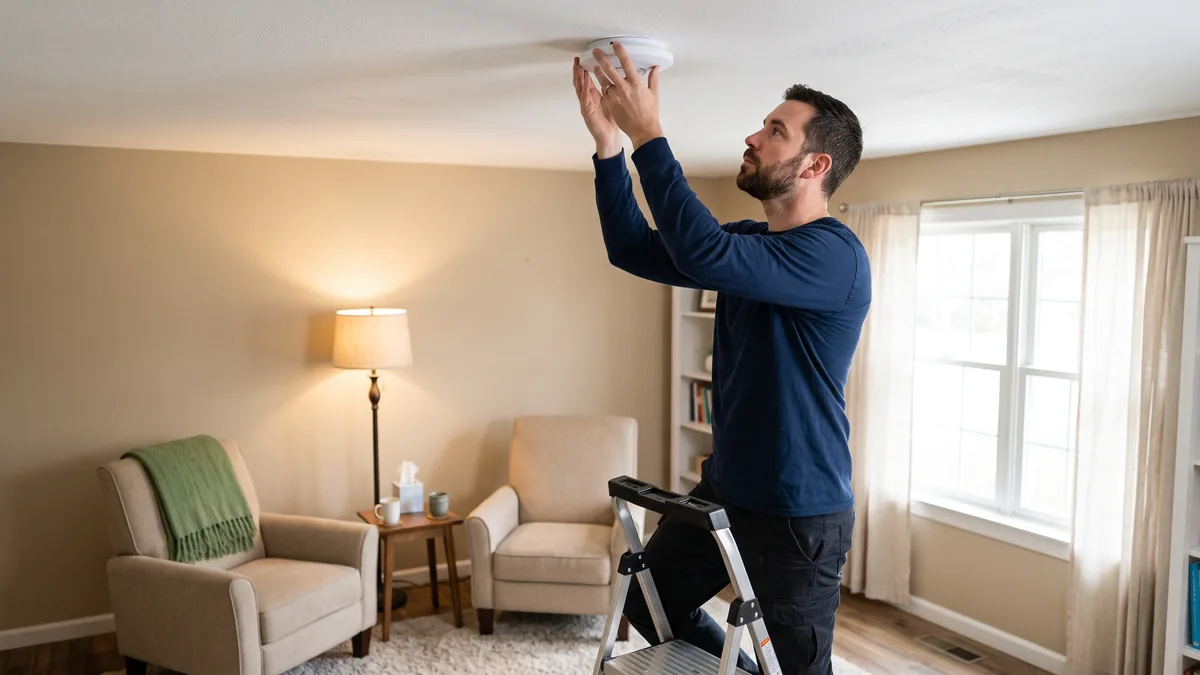
Who does what, briefly. VJNetworks designs, installs, and manages the wireless network and configures the switches and firewall, but we don’t pull cable in-house. When a therapy room needs a new drop, we bring in a subcontractor for the physical run and see that it gets done. Our structured cabling and network installation page explains how that division of labor works.
Clinicians Seeing Clients From Home
Plenty of clinicians run part of their week from home, which moves the whole upload problem onto a residential connection that nobody at the practice controls, on a plan somebody probably picked for streaming rather than for back-to-back video sessions. It also raises a question about the VPN.
VJNetworks uses a VPN for remote access, and it is the right tool for reaching the EHR, the file shares, and anything else that lives inside the practice. The video platform is a different case. Microsoft’s QoS guide says, “We recommend that you avoid running real-time communications traffic over a VPN.” Its VPN split tunneling overview recommends that Teams traffic go direct, because traffic routed straight to Microsoft 365 is already “encrypted, validated for integrity.” Teams media is secured with SRTP before a VPN ever touches it. Zoom’s network guidance likewise lists its media ports as traffic to let through a split tunnel.
Full tunnel sends every video frame from the clinician’s home office to the practice, out the practice’s upload, and back again. Two trips through the thinnest pipe you own. Twice the load for no gain.
Home offices get the same treatment in miniature. A wired connection if the router is within reach of the desk. The platform’s own connection test before the first session of the day. Doxy.me, for one, publishes diagnostic tests for exactly this, and says both people on the call need “at least 500kb/s download and upload speeds to have a good call.” Treat that as a floor.
When the Connection Fails Anyway
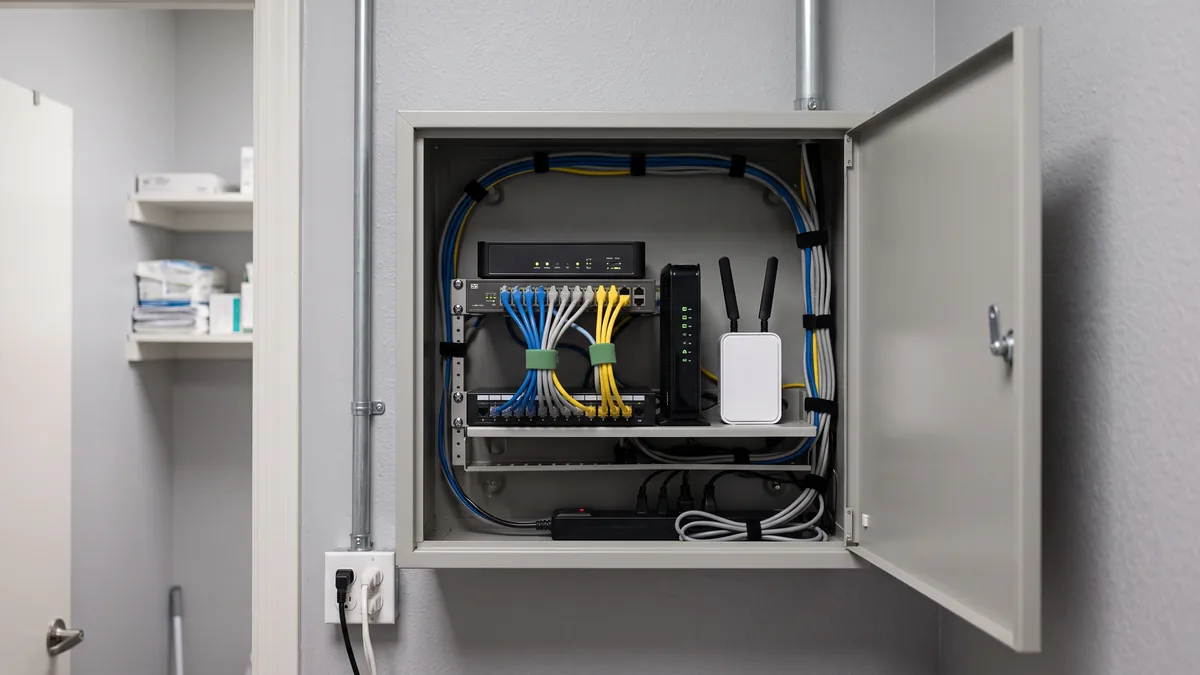
Stable isn’t never. A second internet connection on the firewall, from a different carrier or through a cellular gateway, turns a carrier outage into a pause.
It won’t be invisible. When the firewall moves traffic to the backup link, the practice’s public address changes, live calls drop, and the platforms reconnect them. Expect a short freeze and a reconnect, rather than a lost afternoon. Cellular upload also varies more than a wired circuit does, so the backup link needs its own shaping setting instead of inheriting the primary’s.
Test it first. Unplug the primary during a slow hour and watch what happens.
The clinical side has its own backup plan, and the network plan should line up with it. New York is specific. OMH’s telehealth rule, 14 NYCRR 596.6, requires a written procedure “detailing the contingency plan when there is a failure of the transmission or other technical difficulties that render the service undeliverable.” OASAS has a matching requirement for its programs in 14 NYCRR 830.5, and that section attaches a price to getting it wrong. A service made undeliverable by a transmission failure is not reimbursed.
The professional guidance points the same way. The American Psychological Association’s 2024 telepsychology guidelines encourage “a clear plan for managing technological disruption,” including continuing an interrupted video session with an audio-only phone call. HHS’s telebehavioral health guidance tells providers to discuss with the patient “what to do if there is a problem with the audio or video connection.” In practice that means confirming a callback number at the start of every session, and agreeing ahead of time on how you’ll switch to audio if the video goes. The network can’t prevent every failure. It can keep failures short.
HIPAA Still Applies to the Connection
The pipe doesn’t need a business associate agreement. The platform does.
HHS treats an internet provider as a conduit, a service that “transports information but does not access it other than on a random or infrequent basis,” and a conduit is not a business associate. Its audio-only telehealth guidance applies the same logic to carriers and ISPs with only transient access to what they carry. The video platform is another matter. The pandemic-era enforcement discretion that let practices use ordinary consumer video apps ended with a transition period that expired on August 9, 2023. HHS’s current guidance is that providers “must use technology vendors that comply with the HIPAA Rules and will enter into HIPAA business associate agreements” for their video products. Zoom for Healthcare executes a BAA. Doxy.me’s BAA help article says “All doxy.me users get a free Business Associate Agreement,” with clinic-wide coverage on its paid plans. Teams falls under Microsoft’s HIPAA Business Associate Agreement for Microsoft 365.
Inside the practice, the controls are the ones any clinical network needs. Clinical devices kept apart from guest Wi-Fi. A firewall that is patched and watched, not installed once and forgotten. Remote access through the VPN, with multi-factor sign-in. OMH’s checklist even says that “all end points and all communications traversals should be managed through a managed network firewall.” Hard to argue. Those controls sit in our healthcare cybersecurity program, and our guide to what HIPAA actually requires from your IT provider covers the rest of the list. VJNetworks signs a Business Associate Agreement with every healthcare client, and someone from my team responds within 15 minutes during business hours.
Before the Next Full Telehealth Day
Short on time? The list runs in order of payoff.
- Find your real upload number. It’s on the broadband label and on any speed test.
- Count overlapping sessions. Multiply by 4 Mbps.
- Test latency under load.
- Shape the firewall’s outbound rate just under the measured upload, then put audio and video at the front of the queue.
- Throttle backup and sync uploads.
- Wire the therapy rooms.
- Split-tunnel the video platform for clinicians at home.
- Add a second connection. Then unplug the first.
- Write the contingency plan down.
- File the platform’s BAA.
Questions From Clinicians and Practice Managers
How much upload does one therapy session really use?
Our speed test says 500 Mbps. Why does video still freeze?
Does the QoS setting on the router do anything once traffic leaves the building?
Should telehealth run through our VPN when clinicians work from home?
Is Wi-Fi good enough in a therapy room, or does every room need a cable?
Do we need a BAA with our internet provider?
Is a cellular backup worth paying for in a small practice?
Tell us how many clinicians run telehealth and which internet plan you have. We will measure the real upload, test latency under load, and check the firewall’s shaping and priority rules, then hand you written findings and a plan. No obligation either way.